
Set up your assistant
Link WhatsApp, go through the onboarding questions, and send your first request.
Perisclaw connects to the WhatsApp number you already use. It appears under Linked Devices, just like WhatsApp Web or Desktop, so there is no new phone number or bot account to manage.
Keep your phone nearby for the one-time link. After that, you can speak to Perisclaw from WhatsApp on any of your usual devices.
Connect in four steps
- 1
Sign in to the web app
Open app.perisclaw.com and choose Continue with Google. This opens the private workspace where your assistant and settings live. New accounts are created with Google; if you enter your WhatsApp number first, Perisclaw asks you to sign up with Google and keeps the number for the next step.
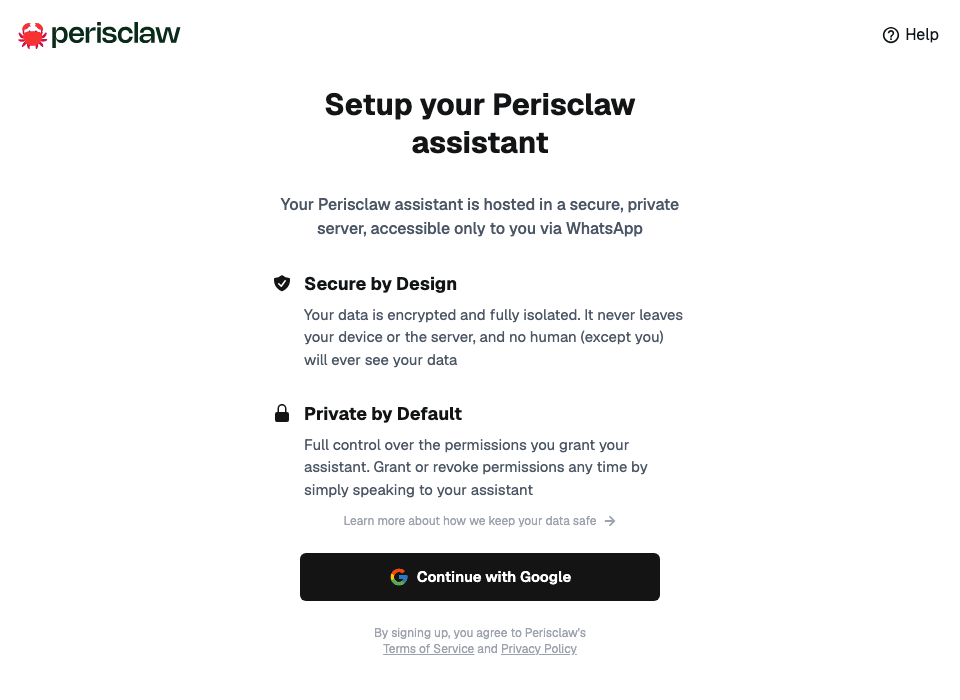
Choose Continue with Google to open your Perisclaw workspace. You see a field asking for your WhatsApp number, or it is already filled in. - 2
Add the WhatsApp number you already use
Enter the number with its country code, then continue. Perisclaw will live in that number's self-chat, the conversation with your own name.
You see a QR code, or a Get linking code button on a phone.
- 3
Link Perisclaw as a device
Choose whichever method fits the screen in front of you. Both use WhatsApp's normal Linked Devices flow and create the same connection.
Need help with the pairing code?The written steps above cover the same path, so you can follow either format.Choose your phone and follow the 20-second walkthrough.
iPhone · 20 secondsWhatsApp lists a new linked device. - 4
Meet your assistant in your self-chat
Give Perisclaw about 30 seconds to wake up. When the web app says You're connected, choose Open WhatsApp (or search WhatsApp for your own name) and send “hello” in that self-chat. The web app then opens on Today.
Perisclaw replies and begins a short, one-question-at-a-time welcome.
Finish the welcome
Perisclaw asks only for the context it needs to be useful. You can answer in your own words, skip an optional question, and change the details later.
- Confirm your name. This is how the assistant addresses you.
- Confirm your timezone. Calendar times and scheduled work depend on it.
- Tell it what matters. The people, deadlines, and topics it should always flag, and what it should ignore.
- Optionally connect Google. Calendar, Contacts, and Gmail make scheduling and recognizing people more useful, but you can add them later.
Always flag payments, deadlines, and messages from my leadership team. Ignore casual family chatter unless someone asks me a direct question.
Get the Perisclaw app
Perisclaw lives in your WhatsApp. The app shows everything it is working on, in one place. Download it, sign in, and your assistant is with you in both places.
Before you start
- WhatsApp installed on your phone, with the number you'll use
- Android or iOS
Setup
- Install the app. Open app.perisclaw.com/download/app on your phone. It takes Android to Google Play and iPhone to the TestFlight beta.
- Open the app and sign in with Google or Apple.
- If WhatsApp isn't linked yet, the app asks you to link it first.
What you'll find in the app
- Today: what needs you right now
- Work: what Perisclaw is handling on its own
- Calendar: what you've committed to, in time order
- You: your profile, connected apps, and settings
- + button: tap to chat with Perisclaw from any tab, or hold to start a voice note
Your messages stay in WhatsApp. The app shows you the rest.
Send the first useful request
Once the welcome is complete, ask something broad. It's a good way to see what Perisclaw already knows.
What needs my attention today?
Reviewing messages before sending
When Perisclaw drafts a message to someone else, it shows you the draft first. React 👍 or ✅, or reply send, to approve it. If you lose track of a draft, ask Perisclaw to show it again. Drafts expire after 24 hours.
On Today in the web app, you can review Perisclaw's draft, edit it if you like, and send it from there.