
Product tour
Where work happens in WhatsApp and how to work through it in the web app.
You ask for work in WhatsApp. The Perisclaw web app is where you sit down to clear what needs you, see what your assistant is running, and decide what it is allowed to do. This tour walks the places in the order you will meet them.
Sign in and connect WhatsApp
The web app is a private workspace. The first visit walks you through linking the WhatsApp number you already use. Choose Continue with Google, add your number, and link it through WhatsApp’s normal Linked Devices flow.
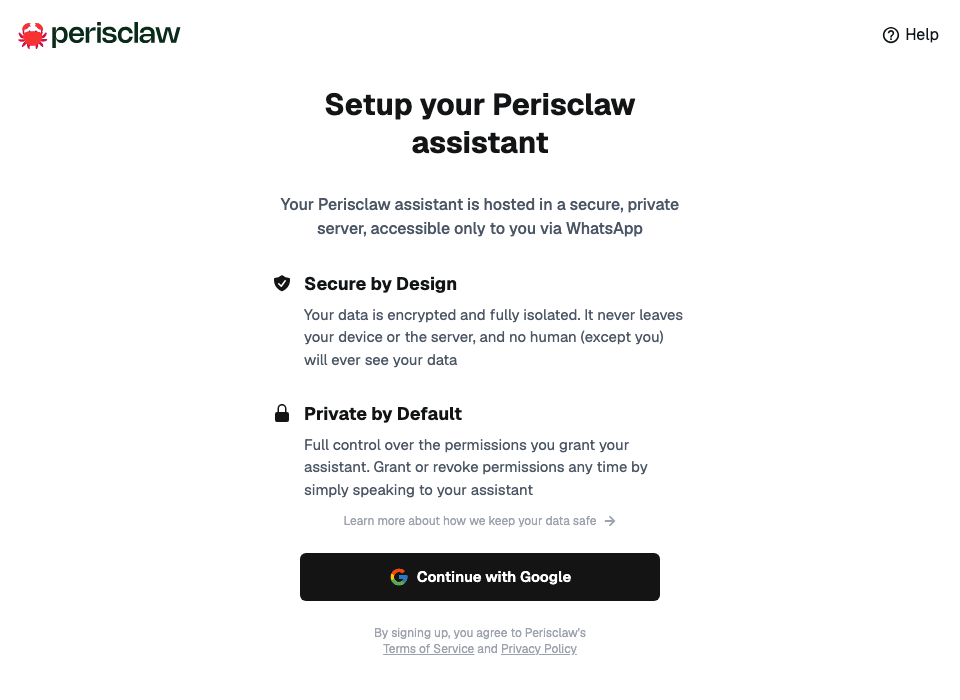
Follow the Connecting guide for the full walkthrough.
WhatsApp is your everyday workspace
Perisclaw lives in the self-chat under your own name. Ask naturally; there is
no command language to learn. Send a voice note when typing is inconvenient,
and use /claw when you want help inside another chat.
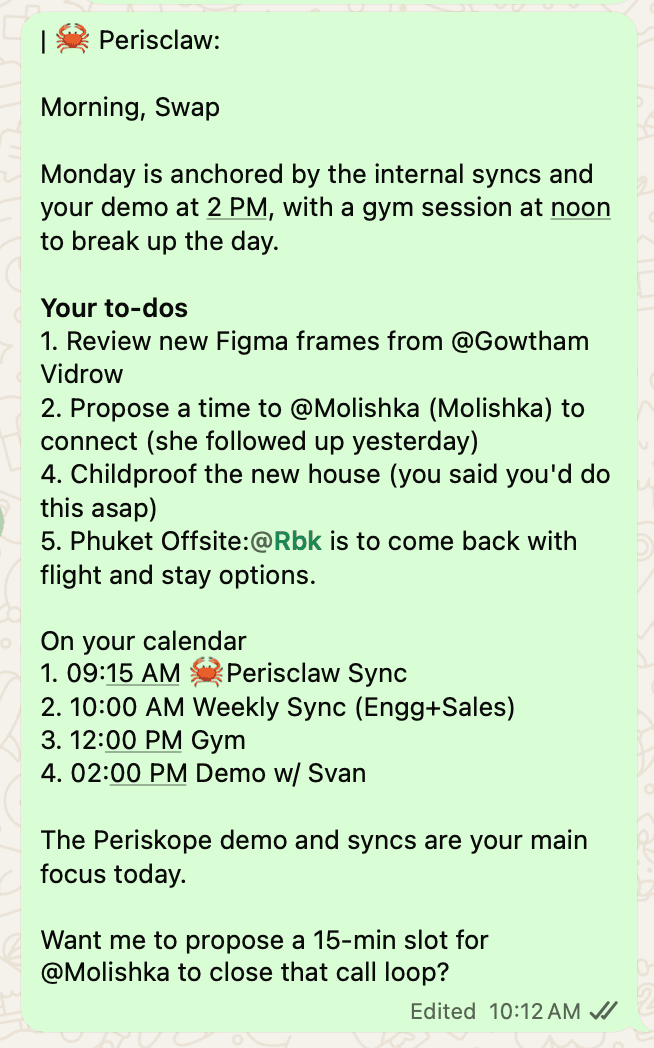
Perisclaw basics teaches both ways to ask and what happens next.
Find your way around
The web app has a side bar with six places: Today, Work, Browser, Apps, MCP, and Settings. The Perisclaw mark at the top opens your conversation with Perisclaw, and Help and your account menu sit at the bottom. On a phone, open the menu at the top left to reach them.
Press Cmd/Ctrl + K on any page to talk to Perisclaw. It is the same conversation as your WhatsApp self-chat.
Today
Today is where the web app opens. It lists every open task, newest update first, with the WhatsApp chat or email thread it comes from in the middle and Perisclaw on the right. Perisclaw's reply is already typed into the reply box: edit it and send, or ask Perisclaw to change it. Choose New to start a session with Perisclaw on something bigger.
See Tasks & commitments for how tasks are detected, delivered, and closed.
Work
Work is one list of everything Perisclaw runs for you: Missions, Automations, and reminders. What needs you comes first, then what is in progress, what goes out in the next 24 hours, and everything you have set up. Open one to see what it does, when it runs next, and how the last run went. See Automations and Missions.
Browser
Browser shows the live screen of the browser Perisclaw uses for websites. Watch it work, or take control when a site needs you. See Browser.
Apps and MCP
Apps connects Google, Slack, Notion, Microsoft 365, and your own tools. MCP brings your WhatsApp into ChatGPT, Claude, Cursor, and other AI clients. See Connecting apps and Perisclaw plugin & MCP server.
Settings
Settings holds your profile and instructions under Personalization, Browser Vault logins, Permissions (blocked chats and hard rules), Skills (the procedures Perisclaw follows), Billing, Team for team owners and admins, and Account, where you can disconnect your phone or delete the account. See Account & settings, Permissions & access, and Skills.