# Account & settings
Canonical URL: https://docs.perisclaw.com/account-and-settings
Most of the time you will run Perisclaw straight from WhatsApp. The
**dashboard** is where you handle the things that are easier to see than
describe, and the few that live outside chat: your connection, notifications,
invites, and account.
## Your dashboard
The dashboard is the companion to your self-chat. Its screens, in sidebar
order:
| Screen | What it is for |
| ------------------------------------------------ | ---------------------------------------------------------------------------------- |
| **Dashboard** | Your connection status, and a jump straight into your WhatsApp self-chat. |
| [**Tasks**](/track-commitments-and-tasks) | Everything on your plate, as a swipeable deck or a list. |
| [**Schedule**](/schedule-reminders-and-messages) | Upcoming one-time and recurring reminders in date order. |
| [**Wiki**](/personal-wiki) | Everything you have saved, organized into folders. |
| [**Automations**](/automations) | Recurring work, event-driven rules, scheduled messages, and multi-step follow-ups. |
| [**Missions**](/missions) | The goals Perisclaw currently owns, with their status. |
| [**Skills**](/custom-skills) | The searchable procedures you have taught it. |
| [**Permissions**](/permissions-and-access) | When your assistant may act, where it is participating, and blocked chats. |
| [**Apps**](/connecting-apps) | Connect Slack, Notion, Microsoft 365, and your own tools. |
| [**MCP Server**](/mcp-server) | Bring your WhatsApp into ChatGPT, Codex, Claude, Cursor, and other AI clients. |
You can also chat with your assistant from any dashboard page: open the claw
launcher (or press Cmd/Ctrl + K) for a side panel with your
self-chat, including a live voice mode. The conversation is the same one you
see in WhatsApp.
## Billing
Your plan, card, next payment, and cancellation live under
**Settings → Billing**. Use **Manage subscription** for plan changes. If a
payment fails, find the invoice marked **Unpaid** in Billing history and use
**Pay now** to open its payment page. See the [FAQs](/faqs) for what Perisclaw
costs and what happens when a trial ends.
If your plan is suspended, product pages show your usual dashboard with a
suspended status and a link to Billing. Account settings remain available so
you can disconnect your assistant if you do not want to reactivate it.
## Push notifications
Turn on **push notifications** to get a nudge on your phone when something
needs you, even when WhatsApp is closed. Enable them during setup or anytime
from the dashboard; on mobile you can also install the dashboard as an app.
Notifications also cover the one thing you would otherwise notice too late: if
your assistant’s link to WhatsApp drops, you are told straight away rather than
wondering why it has gone quiet.
## Invite friends
Perisclaw is in early access, and you can bring people in with your **invite
code**. Share it via WhatsApp or copy the link from your dashboard. Each
account comes with a few invites, and you can see which have been redeemed.
## Per-chat settings
Beyond the [mode](/chat-modes), each chat has options you can tune: whether
your assistant replies in its own voice or yours, how much history it
considers, and standing notes for that chat (*“never discuss budget in this
group”*). Just ask, or adjust them from the dashboard.
## Managing your account
You are always in full control of your data:
* **Clear what it remembers:** ask your assistant to forget specific things
at any time.
* **Disconnect your phone:** use **Disconnect** beside your phone number to
stop the assistant and release its active server. Your saved data is kept;
choosing **Connect phone** later restores it on a new server.
* **Delete your account:** from the dashboard’s **Danger Zone**, disconnect
WhatsApp and permanently remove your account and its data.
**Danger: Deleting your account is permanent**
It disconnects Perisclaw from your WhatsApp and erases your data. You will
be asked to confirm before anything is removed.
For more on how your data is handled, see
[Privacy & security](/privacy-and-security).
### [How your data is protected](/privacy-and-security)
Isolation, encryption, no telemetry, and no training.
### [Fix a problem](/troubleshooting)
Recovery steps for linking, replies, connection drops, and billing.
---
# Automations
Canonical URL: https://docs.perisclaw.com/automations
An **Automation** is anything you want Perisclaw to do again and again: on a
schedule, when a message arrives, or as a multi-step sequence. You describe it
once and Perisclaw runs it.
A one-off nudge to yourself is a
[Reminder](/schedule-reminders-and-messages). A goal Perisclaw sees through to
the end is a [Mission](/missions). Anything recurring or rule-based is an
Automation.
## What you can automate
* **A repeating schedule:** *“Every weekday morning, summarize anything urgent
in my client chats.”*
* **A new message or reaction:** *“React ✅ when someone says approved in the
Finance group.”*
* **Something that needs judgment:** *“Watch the supplier chat and tell me
when the conversation sounds stuck.”*
* **A sequence with waits:** *“Ask Ravi for the numbers Friday. If he has not
replied by Monday, follow up. Tell me after the second miss.”*
* **Connected work:** *“Update the Sheet first, then send the briefing only if
the update succeeded.”*
Simple rules run instantly. Work that needs judgment runs in the background.
Multi-step Automations remember where they are, so they never forget what they
were waiting for.
## Create one
Open **Automations** and choose a template, or describe the result in your
self-chat. Templates draft a normal WhatsApp request that you can change before sending.
There is no configuration language to learn.
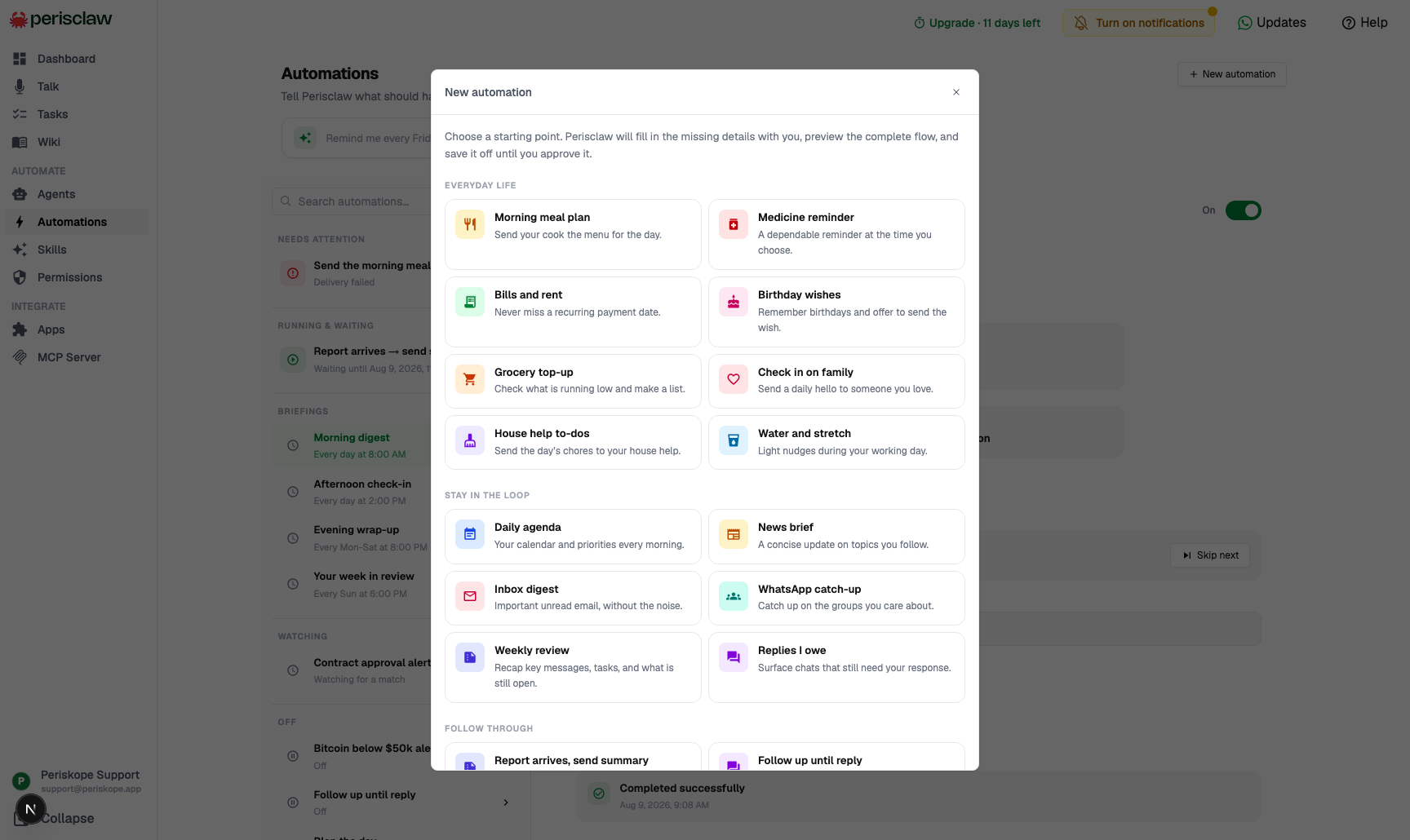
_Templates turn a familiar outcome into a request you can edit before it runs._
> **Describe the behavior in one message:** Every Friday at 4, ask Ravi for the weekly numbers. If he has not replied by Monday morning, ask again. If he still has not replied by Tuesday, tell me.
Perisclaw shows the important parts before anything sensitive goes live: what
starts it, what it will do, who it may message, how long it waits, when it
stops, and any connected-app changes. Automations that message another chat or
change an external service stay off until you confirm them.
**Info: Waits and retries are bounded**
An Automation cannot quietly chase someone forever. Ask explicitly if you
genuinely need an open-ended watch.
## The Automations page
The **Active** view keeps the three kinds of running behavior together:
* **Scheduled:** time-based work, including briefings and recurring actions.
* **Triggers:** rules waiting for a message, reaction, or condition.
* **Flows:** multi-step sequences with waits and decisions.
**Off** contains saved Automations that cannot start new work. A failed
Automation stays where it was, with the failure shown on its row and details
page. Reminders live on the separate **Schedule** agenda because they notify
you rather than perform work.
The details page adapts to the kind of work. Rules use a plain-language
**When** and **Do** view. Multi-step Automations show the full flow, current
step, saved state, recent events, failures, and earlier runs.
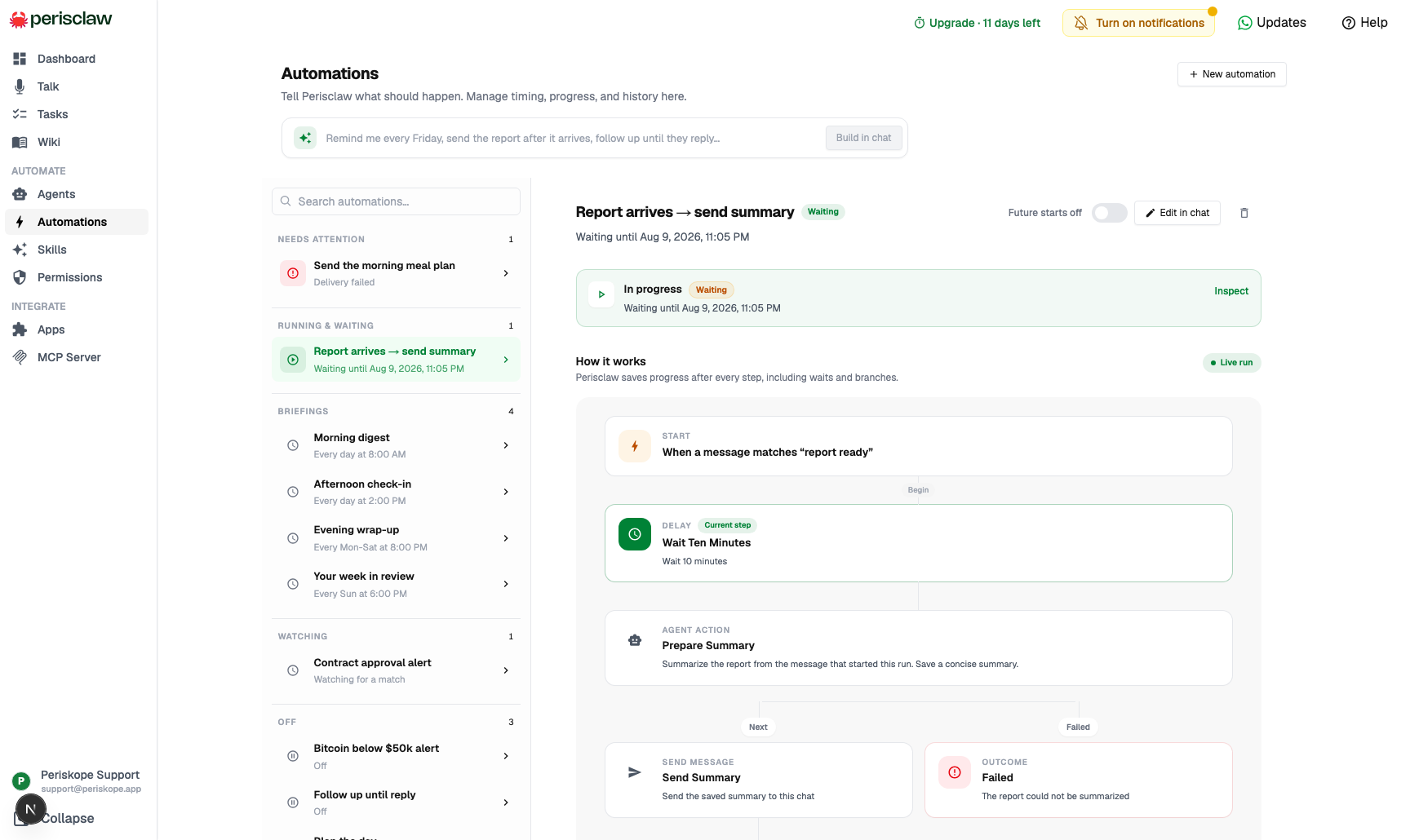
_A multi-step Automation shows exactly where it is and what it is waiting for._
Available controls depend on the Automation: edit its definition or name,
switch future starts on or off, pause or resume a run, cancel a run, or delete
it. Editing a multi-step definition affects future runs; an active run finishes
from the version it started with.
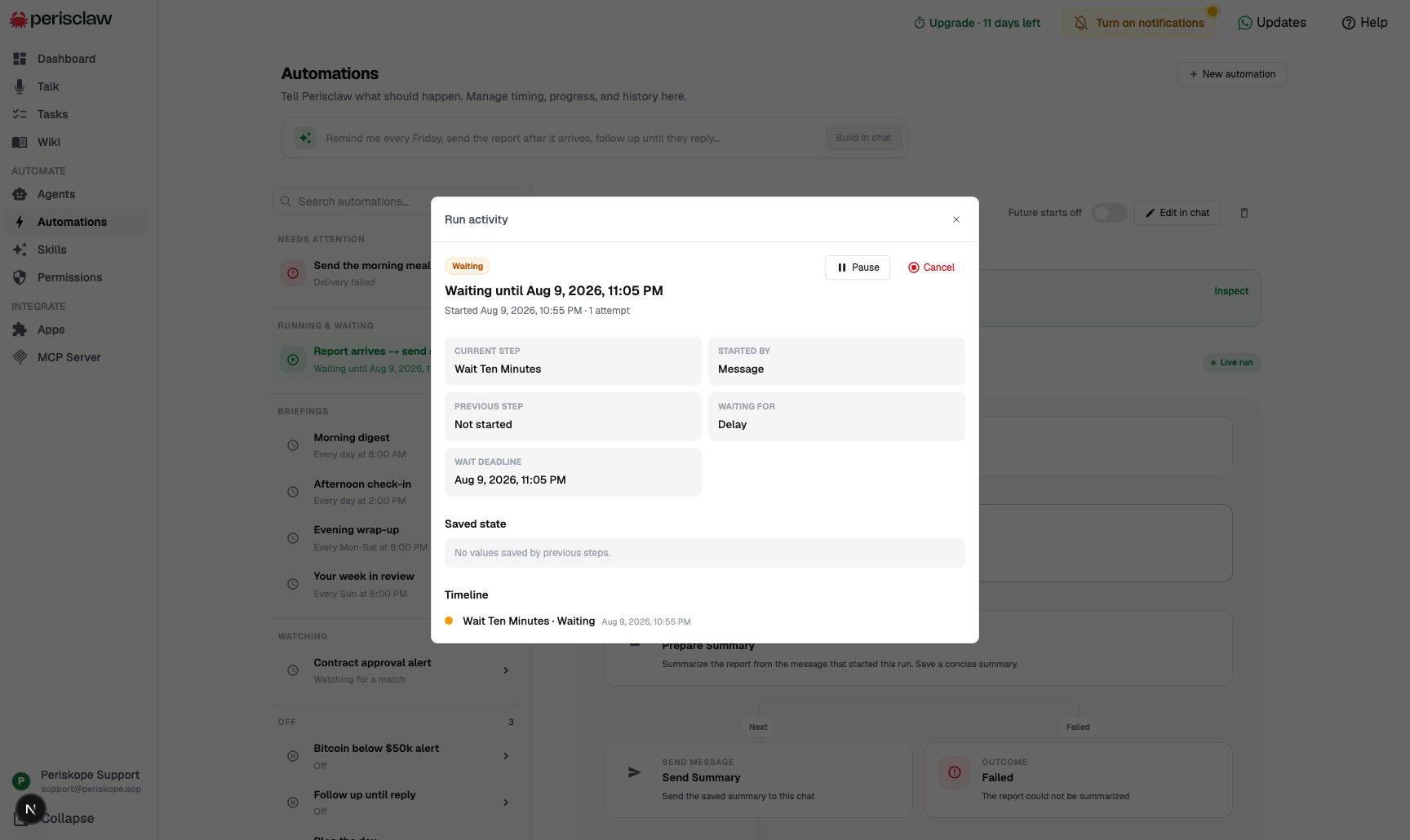
_Check why a run is waiting before you pause or cancel it._
## How Automations run
An Automation tells Perisclaw when to act and what to get done. It is not a
separate agent running all the time. A [Mission](/missions) is one goal
Perisclaw owns until it finishes or comes back to you.
You never have to pick between these: describe what you want in plain language
and Perisclaw sets up the right thing.
### [Hand off a whole outcome](/missions)
For a one-time goal that needs planning and follow-through, not a schedule.
### [Set a simple reminder](/schedule-reminders-and-messages)
When one timed nudge or message is all you need.
### [Connect your apps](/connecting-apps)
Let automations read and update Sheets, Notion, Slack, and more.
---
# Calendar
Canonical URL: https://docs.perisclaw.com/calendar
Connect Google Calendar once, then ask Perisclaw to check your day, protect
focus time, or arrange a meeting without leaving WhatsApp.
## Connect and book your first event
### 1. Connect Google Calendar
In self-chat, ask *“connect my calendar.”* Open the secure link and
approve the Google access you want to grant.
**Done when:**
Perisclaw confirms the connected Google account.
### 2. Check before you book
Ask for a day or a time window. If you use more than one calendar, name
the accounts that should be checked.
**Done when:**
The answer shows the relevant events or available windows.
### 3. Create the event with complete details
Include the day, time, duration, timezone, and attendee. Perisclaw asks
only when something is missing, like an attendee's email.
**Done when:**
Perisclaw confirms what was booked and who was invited.
### 4. Open the saved event
Use the **Open in Calendar** button in the confirmation to
verify the time, invitees, and meeting location.
**Done when:**
The event appears on the intended calendar.
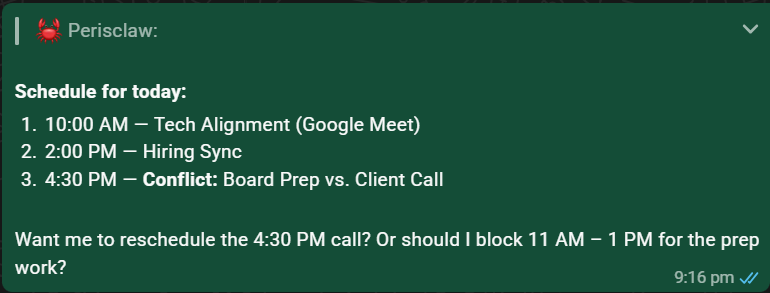
_Ask for the shape of your day before you create or move anything._
> **Try this:** What is on my calendar tomorrow, where do I have a free 90-minute block, and are there any conflicts?
**Warning: Be explicit across timezones**
Say whose timezone a time belongs to when people are in different places.
Perisclaw confirms ambiguous cross-timezone bookings in self-chat before it
creates the event.
## Use it during the day
* Ask for a briefing before a meeting using allowed chat and connected-app
context.
* Block focus time for a task or commitment.
* Move a personal hold, or ask to edit an event with attendees.
* Hand over the whole back-and-forth: ask Perisclaw to coordinate a meeting and
it runs the exchange as a [Mission](/missions) until the time is booked.
> **Prepare for a meeting:** Brief me for my 3pm. What is the meeting for, what did we last discuss, and what should I decide?
## Calendar details
### Use more than one Google account
Check conflicts across work and personal calendars
Connect each Google account, then name the account to use when you book.
If the target calendar is ambiguous, Perisclaw asks before writing.
### Book from another WhatsApp chat
Private calendar details stay in self-chat
A request can start with `/claw` in another chat, but the
private details move to your self-chat. Perisclaw never tells the other
person why a time is unavailable.
### Understand invites and Meet links
Attendees are notified when the event is created
Perisclaw verifies a required attendee email before creating the event. A
location-free meeting normally receives a Google Meet link; an in-person
meeting does not unless you ask for a hybrid meeting.
### Disconnect the calendar
Revoke access at any time
Ask Perisclaw to *“disconnect Google”*, or remove Perisclaw from
third-party app access in your Google Account security settings. Connect
Microsoft 365 from the dashboard Apps page for Outlook calendar access.
### [Reminders and scheduled messages](/schedule-reminders-and-messages)
Bring things back at the right time or send a message later.
### [Let it coordinate the meeting](/missions)
Hand over the back-and-forth and Perisclaw books the time.
### [Use Outlook instead](/connecting-apps)
Connect Microsoft 365 for Outlook mail and calendar.
---
# Chat modes & autonomy
Canonical URL: https://docs.perisclaw.com/chat-modes
You are always in control of how active Perisclaw is. There are two layers: one
**overall setting** that decides how forward it may be in general, and
**per-chat exceptions** for the chats you want handled differently.
Your **self-chat** sits outside these modes. It is your private workspace and
always works, unless you block it with WhatsApp’s built-in Chat Lock.
## The overall setting
Set this once on the **Permissions** page. It answers a single question: when
may your assistant act in a chat that is not your self-chat?
| Mode | When it acts outside your self-chat |
| ----------- | ------------------------------------------------------------------------------------------------------------------------------- |
| **Strict** | Only when you summon it with `/claw`. |
| **Default** | Also in chats you explicitly hand over, for the purpose and period you specify. This is where most people should sit. |
| **Auto** | Also on new inbound activity in eligible one-to-one chats, following the [engagement rules you write](/permissions-and-access). |
For a standing rule such as *“when a sales lead messages, notify me”*, create
an [Automation](/automations). For a finite outcome such as *“coordinate a time
with Mira and book it”*, create a [Mission](/missions). Both stay narrowly
scoped and do not turn a whole chat into an always-on assistant conversation.
You don't have to pick; ask for what you want and Perisclaw sets up the right
one.
## Per-chat exceptions
Whatever your overall setting, individual chats can be handled differently.
Tell your assistant, from inside the chat or from your self-chat:
* *“Participate in this thread until Friday and answer as my assistant.”* It
may now respond visibly there, for that purpose and period.
* *“Stop participating in this chat.”* Back to only acting when summoned.
* *“Never read this chat.”* Blocked entirely. See below.
Both lists live on the **Permissions** page: **Participating now** shows every
chat where your assistant currently has explicit permission to respond, with
how to stop it; **Blocked chats** shows the chats it must leave alone, which
apply in every mode, including Strict.
## Blocking a chat properly
**Warning: Only blocking is a privacy control**
There is a real difference between{' '}
*“don’t bother me about this chat”* and{' '}
*“never read this chat.”* Say
** “never read \”** in your self-chat and your
assistant cannot read, search, summarize, quote, or reply in that chat at
all. If you later ask it to do something in a blocked chat, it tells you the
chat is blocked and asks whether to unblock, rather than quietly doing it.
## Draft-first by default
Whenever Perisclaw is about to send a message to someone else on your behalf,
it shows the draft in your self-chat and waits for your OK. Approve by replying
*“send”* or reacting 👍 to the draft.
The exceptions are `/claw` used directly in a chat (you are already standing
in it, so it acts there) and chats you have handed over. The first time it
messages a new contact for you, it confirms the name **and** the number before
anything goes out.
## Whose voice it speaks in
When Perisclaw sends something for you in another chat, it goes out as **you**,
with no assistant header. Nobody needs to know how the message got written.
When you summon it with `/claw`, it answers as the assistant, clearly labelled.
If you would rather it be openly the assistant in a particular chat (a work
group where people should know they are talking to your EA), say so: *“act as my
assistant in this group,”* and every message there is labelled until you flip
it back.
For what your assistant can reach in the first place, see
[Permissions & access](/permissions-and-access).
### [What it can reach](/permissions-and-access)
The access and approval rules behind every mode.
### [Learn the everyday basics](/use-cases)
Self-chat, /claw, and how drafts and approvals work.
---
# Connecting apps
Canonical URL: https://docs.perisclaw.com/connecting-apps
Perisclaw can do more than WhatsApp and Google. Through **connectors**, you
plug in the other tools you already use, then work them by asking in chat.
Instead of hopping between apps, your assistant becomes the hub.
**Note: Connectors use MCP**
MCP (Model Context Protocol) is an open standard for letting assistants talk
to other apps. You do not need to know the details. Connect an app once and
start using it.
## Two ways to connect
* **From the catalog:** browse the ready-to-connect apps on the **Apps** page
in your dashboard and add one with a couple of taps.
* **Bring your own:** connect any app that offers an MCP endpoint by adding
its address and signing in. Useful for internal tools or anything not yet in
the catalog.
The catalog currently includes **Microsoft 365** (Outlook mail and calendar,
OneDrive, contacts), **Slack**, **Notion**, **Dropbox**, **Todoist**,
**Asana**, **HubSpot**, **Stripe**, **PayPal**, **Calendly**, **Granola**,
**Fireflies**, and **Canva**. It grows over time. The Apps page always shows
what is available right now.
## How connecting works
Connecting always happens on the dashboard, never in chat. That keeps your
passwords and keys out of your WhatsApp history.
### 1. Ask in WhatsApp
Tell your assistant what you want to connect: *“connect my Notion.”*{' '}
It replies with a secure link to the dashboard. You can also go straight
to the **Apps** page.
**Done when:**
You have a dashboard link for that service.
### 2. Authorize on the dashboard
Open the link. Either sign in to the app through its normal “allow access”
screen, or paste the app’s address and access token. Perisclaw stores the
credential securely.
**Done when:**
The service shows as connected on the Apps page.
### 3. Start using it in chat
Your assistant confirms the connection and lists what it can now do. From
then on, just ask.
**Done when:**
A request that uses the app returns a real result.
## What you can do once connected
Anything the app exposes becomes available in plain language:
* *“Find the Notion doc about the Q3 budget.”*
* *“What did I miss in the #launch Slack channel today?”*
* *“Summarize my unread Outlook mail.”*
* *“Add ‘renew the domain’ to my Todoist for Friday.”*
You can also weave connected apps into [Missions](/missions) and
[Automations](/automations): *“open a ticket in our CRM, wait for it to be
assigned, then tell the team”* or *“update this Sheet every morning.”*
## Manage your connections
Ask *“what apps do I have connected?”* or check the **Apps** page. To remove
one, say *“disconnect Notion”* (it confirms first) or remove it from the
dashboard. Disconnecting immediately stops all future access to that service.
**Success: Your credentials never travel through WhatsApp**
Credentials are entered on the dashboard and stored encrypted. When a
connected app is about to take a real action on your behalf (not just read
something), your assistant confirms with you first.
Perisclaw also screens the addresses you connect to and limits how many apps
and tools can be added, to keep your private server safe. For how access and
approvals work in general, see
[Permissions & access](/permissions-and-access).
Want to go the other way and use your WhatsApp *from* ChatGPT, Codex, Claude,
or Cursor? See [the Perisclaw plugin and MCP server](/mcp-server).
### [Start with Drive & Sheets](/drive-and-sheets)
File documents and log data straight from your chats.
### [Control what apps can do](/permissions-and-access)
Review and revoke access for every connected service.
### [Go the other way](/mcp-server)
Use your WhatsApp from ChatGPT, Claude, Cursor, and other AI tools.
---
# Custom skills
Canonical URL: https://docs.perisclaw.com/custom-skills
There is a difference between telling your assistant what you want and teaching
it how you work. The first you do every time; the second you do once.
A **skill** is a procedure Perisclaw follows whenever the situation calls for
it. The easiest way to create one is to say so in the middle of doing the
thing:
> **Teach it mid-task:** From now on, when I say 'do the standup post', pull yesterday's updates from the team group and format them as: name, done, next, blockers.
Perisclaw writes the skill, tells you what it saved, and uses it from then on.
If you correct it later (*“actually put blockers first”*), the skill gets
updated, not just that one reply.
You can also write one yourself. Open **Skills** in your dashboard, choose
**New skill**, and describe when it should be used and what to do.
## Your skills library
The **Skills** page is a searchable list split into **Your skills** and
**Built-in** skills. Switch a skill on or off directly in the list, or open its
page to edit the source instructions. A disabled skill stays in your library,
but Perisclaw will not load it while working.
Perisclaw’s built-in skills appear in the same list and are editable too. If an
edit does not work out, open that skill and choose **Restore to default** to
bring back the version shipped by Perisclaw. Custom skills can be deleted;
built-in skills cannot.
## Edit with help
The menu beside **Save** holds the secondary actions:
* **Improve with AI:** a general cleanup that tightens what you wrote without
changing what you meant.
* **Describe changes:** type or dictate a specific request. Perisclaw prepares
a draft in the editor first; review it and choose **Save** before it becomes
the active skill.
* **View change history:** a separate page with every saved revision and its
exact diff.
**Info: Your edits are never silently overwritten**
Your assistant cannot replace a skill while you are editing it. If the
skill changes after you open it, reload the latest version before saving.
## Skills worth writing
* *“When I say ‘do the standup post’, pull yesterday’s updates from the team
group and format them as: name, done, next, blockers.”*
* *“For any invoice that comes in, file it to Drive as YYYY-MM-Vendor, log the
amount to the expenses sheet, and tell me the running total.”*
* *“When someone asks about pricing, never quote a number. Say I’ll follow up
and make me a task.”*
* *“New client onboarding: create the group, add them, send the welcome
message, book the kickoff, and put a reminder on my calendar for day 7.”*
Skills are about **how you work**. For what Perisclaw remembers about you
personally, see [Personal memory](/personal-memory); for what it remembers
about other people, see [Relationship memory](/relationship-memory).
### [Run a skill on a schedule](/automations)
Combine a skill with an automation for recurring, formatted work.
### [Preferences vs procedures](/personal-memory)
Small preferences live in personal memory; repeatable procedures live in skills.
---
# Docs MCP
Canonical URL: https://docs.perisclaw.com/docs-mcp
The documentation is available as a read-only Model Context Protocol (MCP)
server. Connect it once and your agent can look up current Perisclaw behavior
instead of relying on memory or a pasted bundle of old docs.
**Note: Public documentation only**
This MCP contains the same public pages as this website. It cannot see your
account, WhatsApp, connected apps, or customer data, and it cannot change
anything.
## Connect the server
### 1. Open your agent's MCP settings
Add a new remote server using **Streamable HTTP**. The exact
button name varies between Claude, Codex, Cursor, and other clients.
### 2. Use the docs endpoint
Paste this address as the remote MCP URL:
```text
https://docs.perisclaw.com/api/mcp
```
### 3. Test one lookup
Ask the agent to search the Perisclaw docs before answering a product
question. It should call `search_docs` , then read the most
relevant page.
> **Try this:** Use the Perisclaw docs to explain how I connect my WhatsApp number.
**Done when:**
The answer links back to the relevant public guide.
## Available tools
| Tool | Use it for |
| ------------------ | ----------------------------------------------------------------- |
| `list_docs` | Browse every public page and its direct Markdown URL. |
| `search_docs` | Find the best pages for a product question. |
| `read_doc` | Read one page as agent-friendly Markdown. |
| `get_doc_markdown` | Get clean Markdown to copy into a note, prompt, or support reply. |
## Direct Markdown options
Every page also advertises a Markdown version in its metadata. For larger
imports, use [`/llms.txt`](/llms.txt) as the index or
[`/llms-full.txt`](/llms-full.txt) as a single combined document.
**Tip: Give your agent one rule**
Tell it to search the docs before making claims about setup, capabilities,
permissions, privacy, pricing, or integrations. That keeps answers tied to
the current published source.
### [Connect your WhatsApp too](/mcp-server)
The Perisclaw MCP server lets AI clients read and act on your chats.
---
# Drive & Sheets
Canonical URL: https://docs.perisclaw.com/drive-and-sheets
Connect Google Drive and Sheets, and Perisclaw becomes the way you file documents and log data, straight from your chats. Anything that arrives or gets decided in WhatsApp can go where it belongs without you downloading it, opening another app, or hunting for the right folder or cell.
## Connecting your Drive and Sheets
Just ask in your [self-chat](/use-cases), and Perisclaw walks you through a one-time Google sign-in.
*"Connect my Google Drive and Sheets."*
If you've already connected your [Google Calendar](/calendar), you're set. The same Google sign-in covers Drive and Sheets, so there's nothing separate to authorize.
## What you can do with it
### Save files to Drive instantly
Documents you get on WhatsApp (contracts, invoices, receipts, briefs) otherwise sit buried in chat history. Forward one to Perisclaw, or point it at a chat, and it files the document straight into the right Drive folder with a single instruction.
*"Save this invoice to the Expenses 2026 folder."*
![Perisclaw confirming it filed a PDF into a Work/Projects folder on Drive, with a shared link, and offering to extract the action items into a task list]
### Keep Drive organized
Perisclaw handles the filing system, not just the file. It can create folders on the fly, move documents between them, and rename files to a consistent convention, like `2026-06-Vendor.pdf`, so they're actually findable later instead of saved as `IMG-202401.pdf`.
*"Create a folder called Legal Q3 and move this contract there."*
### Log data into a Sheet
Numbers shared in chat (an expense, a lead, an order) usually never make it into a spreadsheet, because opening one to log a single line isn't worth it. Send Perisclaw the detail or the receipt and it reads what matters (date, vendor, amount) and appends it as a row. It can create a new sheet if you don't have one yet.
*"Log this receipt: 45 for lunch with the team."*
### Query your Sheets
Once data is in a sheet, you can ask about it without opening it. Perisclaw reads the sheet and answers right in the chat, so a total or a count is one message away wherever you are.
*"What's the total spend on travel last month?"*
![Perisclaw confirming it logged three receipts into a June Expenses sheet with a running total, and offering to alert when a spending limit is reached]
### Update records
Trackers go stale when updating them is a chore. Perisclaw can change a value, mark a status, or update a specific row on your instruction, so your records stay current from the chat.
*"Mark row 15 in the invoice sheet as paid."*
### Manage the tabs, not just the cells
A tracker usually outgrows one tab. Perisclaw can add a new sheet for the new month, rename one, or clear a range that's gone stale, so the structure keeps up with the data.
*"Add an August tab to the expenses sheet, same columns as July."*
### Work across several accounts
You can connect more than one Google account (your work one and your personal one) and tell Perisclaw which to use. Say *"connect my work Google too,"* and from then on *"save this to my work Drive"* goes to the right place.
## Good to know
**Drive is scoped to what Perisclaw touches.** In Drive, it only ever sees the folders and files **it created** for you. The rest of your Drive (everything that was there before you connected) stays private and invisible to it.
**Sheets works differently on purpose.** So that Perisclaw can log into a tracker you already keep, it can open a spreadsheet **you give it the link to**, as well as ones it creates. It can't go looking through your Drive for spreadsheets; you have to hand it the one you mean.
With Drive & Sheets connected, your important documents are never lost to the noise of chat history. They're filed into a structured, searchable archive as you go.
On Microsoft instead? Connecting [Microsoft 365](/connecting-apps) gives
Perisclaw your OneDrive files alongside Outlook mail, calendar, and contacts.
### [Connect more tools](/connecting-apps)
Slack, Notion, Microsoft 365, and other apps work the same way.
### [File and log automatically](/automations)
Turn a working request into recurring behavior, like logging every invoice.
### [Find any file later](/search-across-everything)
Describe what you remember and Perisclaw finds the document.
---
# FAQs
Canonical URL: https://docs.perisclaw.com/faqs
Find the question closest to yours. The short answer comes first; open a row
only when you need the detail.
## Getting started
What Perisclaw is and how it fits into WhatsApp.
### Do I need a new WhatsApp number?
No. Perisclaw connects to the number you already use as a linked device,
then lives in your self-chat. Follow the visual
[ Connecting guide](/setup-your-assistant) to link it.
### How is Perisclaw different from a chatbot?
A chatbot mainly answers questions in a separate conversation. Perisclaw
works from your WhatsApp, can use the conversations and apps you allow, and
can keep work moving after the first answer: tracking a
commitment, scheduling a reminder, or preparing a follow-up.
### How do I get its attention outside my self-chat?
Include `/claw` in your message, for example
* “/claw what was the final decision here?”* In other chats it stays
silent until you call on it, unless you explicitly change that chat's
autonomy.
### What languages does Perisclaw support?
Perisclaw understands most widely used languages. Speak or write naturally
in the language you prefer; you do not need to change a setting first.
## What it can do
The kinds of work you can hand off and their current limits.
### Should I create a Task, Reminder, Mission, or Automation?
You usually do not need to choose. Describe the outcome in normal language
and Perisclaw picks the right kind of work.
-
**Task:**
something you or another person has committed to do.
-
**Reminder:**
a nudge at a specific time or after a delay.
-
**Mission:**
a larger outcome that takes several steps to finish.
-
**Automation:**
repeatable work that starts on a schedule or event.
See [Perisclaw basics](/use-cases) for examples of each.
### Can Perisclaw fill in forms or log in to websites for me?
No. It can search the live web and read a page or link, but it does not
operate a general browser, so it cannot complete logins, forms, or checkouts.
For actions inside another product,
[ connect the app](/connecting-apps) instead.
### Does it work with Outlook and Microsoft 365?
Yes. Connect Microsoft 365 from **Apps** to work with Outlook
mail and calendar, OneDrive files, and Microsoft contacts. Google Calendar,
Gmail, Drive, Sheets, and Contacts are also supported directly.
### Is there a limit to how many tasks or reminders I can set?
There is no hard limit. A shorter list keeps daily briefings short and
helps important work stand out.
## Privacy and control
What Perisclaw can see, remember, and say in your conversations.
### Can I see and change what it has learned about me?
Yes. Open **Skills** in the dashboard to review and edit what
your assistant knows, the rules it follows, and the procedures you have
taught it. Changes are version-tracked. See
[ Custom skills](/custom-skills).
### How do I stop it from working in a particular chat?
Say *“stop participating in this chat”* to stop autonomous replies.
Say
* “never read \”* when you also want to block reading,
searching, and quoting that chat. Review both settings on the
** Permissions** page.
To ignore just one message, add `/ignore` . To halt current and
queued work, send `/stop` in your self-chat.
### How do I make it forget something?
Tell it exactly what to remove, for example
* “Forget that the client is not moving forward”* or
* “Delete the task about the grocery list.”* You can also review
saved knowledge and tasks in the dashboard.
### Will other people know when Perisclaw replies?
When you summon it with `/claw` , it answers as the assistant,
clearly labelled. A message it drafts and sends on your behalf (after you
approve it in self-chat) goes out as you, with no assistant header. Say
* “act as my assistant in this group”* when you want its messages
labelled in a particular chat.
### Can it message all my contacts at once?
No. Broadcast-like sending can get a real WhatsApp number flagged as spam,
so Perisclaw blocks it. Use a WhatsApp Community, channel, or opt-in group
link for genuine announcements.
## Plans and accounts
Pricing, billing, phone numbers, and shared access.
### What does Perisclaw cost?
The standard monthly plan is **$20 USD**. Stripe may present
an eligible local currency at card checkout. Your **Billing**
screen is the source of truth for your exact price, currency, trial, and
any discount attached to your account.
### What happens when my trial or free access ends?
If your checkout includes a payment method, the plan continues according to
the terms shown there. Without an active payment, the assistant pauses and
the dashboard directs you to **Settings → Billing**.
Open an unpaid invoice and choose **Pay now**, or resubscribe
from Billing to restore access. Permanently deleting the account is a
separate action under Settings.
### Can I use Perisclaw on multiple phones?
One Perisclaw account connects to one WhatsApp number. You can still use
that WhatsApp account from its normal linked phones and desktop clients. To
connect another number to Perisclaw, use a separate account.
### Can my partner or team share my Perisclaw account?
No. The assistant's memory, permissions, and connected WhatsApp number
are personal to one account.
## Help and feedback
A real person can help when the guide is not enough.
### Where can I report an issue or suggest an idea?
[Contact our support team on WhatsApp](https://api.whatsapp.com/send/?phone=919205759988\&text=Hi,%20I%20need%20some%20help%20with%20Perisclaw)
with the issue or idea. Include a screenshot when it helps, but never send
a pairing code or private conversation content.
### [Something is not working](/troubleshooting)
Follow the recovery steps for linking, replies, connection drops, and
billing access.
---
# What is Perisclaw
Canonical URL: https://docs.perisclaw.com/
**Perisclaw is an AI executive assistant that lives in your WhatsApp and works
with the full context of your conversations.** It keeps you on top of what
matters across WhatsApp, email, calendar, Drive, and any other apps you
connect: the replies you owe, the promises you've made, the meetings coming
up. No need to spell out the background.
It runs through your own WhatsApp number. There is no separate bot or number to
remember. Talk to it in your self-chat, or add `/claw` in another conversation
when you want it to help there.
[See Perisclaw in action](https://www.youtube.com/watch?v=CioPPLwAx8w)
## Start here
### [Set up your assistant](/setup-your-assistant)
Link Perisclaw to your WhatsApp in about a minute.
### [Using Perisclaw](/use-cases)
How to talk to it: in your self-chat, with /claw in any chat, or by voice.
### [Connect your apps](/connecting-apps)
Add Calendar, Drive, Slack, Notion, Microsoft 365, and the other tools you
use.
## What it can do
Start with the work you'd hand to an assistant on day one:
* **Stay on top of commitments.** Perisclaw [tracks the promises](/track-commitments-and-tasks)
you make and receive, and brings them back before they slip.
* **Organize your chats.** [Label, mute, and archive](/organize-your-whatsapp)
WhatsApp chats just by asking.
* **Manage your time.** [Schedule meetings](/calendar), set reminders, and
[send messages later](/schedule-reminders-and-messages).
* **Find anything.** [Search across](/search-across-everything) your allowed
chats, email, calendar, files, and saved knowledge in plain language.
* **Put work on autopilot.** Set up recurring work like a morning briefing
with [Automations](/automations), or hand over a goal like chasing five
invoices and let a [Mission](/missions) follow through.
* **Remember things for you.** Save notes to your
[personal wiki](/personal-wiki), and let Perisclaw learn
[your people](/relationship-memory) and [how you work](/personal-memory).
* **Talk instead of typing.** Send a [voice note](/voice) or start a live voice
conversation.
* **Work across your apps.** Connect [Calendar and Drive](/drive-and-sheets), or
bring your own tools through [connected apps](/connecting-apps).
* **Teach it your way of working.** Write a [custom skill](/custom-skills) once
and Perisclaw follows the procedure each time.
> **A useful first request:** What needs my attention today?
## How it stays safe
Your assistant runs in an isolated environment, your data is encrypted, and
you decide which chats and connected apps it may use. Review the full details
in [Privacy & security](/privacy-and-security) and
[Permissions & access](/permissions-and-access).
Start small: ask for one thing in your self-chat, and give it more access as
it earns it.
**Info: You remain in control**
Review access from [Permissions](/permissions-and-access), manage
external services from [Apps](/connecting-apps), and use ` /stop` whenever you need to halt current work.
## Ready to begin?
### [Connect your WhatsApp number](/setup-your-assistant)
Follow the visual setup guide and send your first request.
### [See what changed recently](/whats-new)
See what shipped in recent releases.
---
# Perisclaw plugin & MCP server
Canonical URL: https://docs.perisclaw.com/mcp-server
You can use your Perisclaw WhatsApp from **ChatGPT, Codex, Claude, Cursor**,
and other compatible AI clients. Ask it to *“summarize my unread chats,”*
*“reply to Sarah,”* or *“find the address Priya sent last month,”* and it works
through your existing assistant.
In ChatGPT and Codex, **Perisclaw is an installable plugin**. The plugin
bundles two parts: Perisclaw’s live WhatsApp connector, powered by its **MCP
server**, and a skill that teaches the client safe WhatsApp workflows. Other AI
clients can connect directly to the same MCP server.
This is the mirror image of [connecting apps](/connecting-apps): there,
Perisclaw uses your other tools; here, your other tools use Perisclaw.
**Info: It is still your own WhatsApp**
Everything happens on your own WhatsApp, through your private server. No
second copy of your account is created, and the same sending safeguards that
apply in chat apply here too.
## ChatGPT and Codex
Install the **Perisclaw plugin** from the Plugins directory, connect your
Perisclaw account, and choose **Read only** or **Read + write** access. The
public listing appears after OpenAI approves it.
During the developer preview, enable developer mode and add the production MCP
URL shown on the **MCP** page in your Perisclaw dashboard. This preview
connection uses the same consent screen and WhatsApp tools as the plugin.
## Other MCP clients
Clients such as Claude Desktop and Claude.ai support one-click connectors:
### 1. Add Perisclaw's connector
In your AI client, add a new connector or MCP server and paste the
Perisclaw MCP address from the **MCP** page in your
dashboard.
**Done when:**
The client shows Perisclaw as a new connection.
### 2. Sign in
The client opens a Perisclaw login in your browser. Because you are
already signed in to the dashboard, you just see a consent screen.
**Done when:**
The consent screen names the client requesting access.
### 3. Choose what it can do
Pick an access level, **Read only** or
** Read + write**, then approve.
**Done when:**
The client can now use your WhatsApp tools.
## Choose the right access level
| Access level | What the client can do |
| ---------------- | ----------------------------------------------------------------------------------------------------------- |
| **Read only** | Search and read your chats, contacts, and groups. Cannot send or change anything. The safe default. |
| **Read + write** | Everything in Read only, **plus** sending messages, reacting, managing chats, groups, labels, and contacts. |
**Warning: Start with Read only**
Widen access only when you specifically want the client to send messages or
make changes. Permission changes apply to new connections, so reconnect an
existing client to pick up a wider grant. Approving a wider grant
automatically signs that client’s older sessions out.
## What you can do from your AI client
* **Catch up:** *“Summarize everything I missed in my work groups today.”*
* **Search:** *“Find the address Priya sent me last month.”*
* **Reply** (with Read + write): *“Reply to Sarah that Tuesday at 3 works.”*
* **Organize** (with Read + write): *“Label all the unanswered client chats
‘follow up.’”*
The plugin’s bundled skill resolves recipients before acting, treats message
content as data rather than instructions, and asks before sending or making
destructive changes. Standalone coding clients such as Claude Code or Cursor
can layer the same open Perisclaw workflow skill on top of a plain MCP
connection.
## Staying in control
* **Scoped to you:** a connection only ever reaches your own WhatsApp; it
cannot touch anyone else’s.
* **Sends are still gated:** messages sent from an AI client go through the
same per-chat permission and [mode](/chat-modes) checks as everything else.
* **See every grant:** the dashboard labels each connected client as Read
only or Read & write, and flags clients that still have live sessions at
both levels.
* **Revoke anytime:** remove a connection from the dashboard and the client
immediately loses access.
For the bigger picture on what your assistant can and cannot touch, see
[Privacy & security](/privacy-and-security) and
[Permissions & access](/permissions-and-access).
### [Connect apps to Perisclaw](/connecting-apps)
The mirror image: let Perisclaw use your other tools from WhatsApp.
### [Review every grant](/permissions-and-access)
See and revoke what each connected client can do.
---
# Missions
Canonical URL: https://docs.perisclaw.com/missions
A **Mission** is an outcome you want Perisclaw to own from start to finish. It
suits work that takes several steps, may move across chats, and should keep
going without you remembering each follow-up.
You don't need to choose “Mission” or set anything up. Ask naturally in
WhatsApp and Perisclaw decides when a request needs ongoing follow-through.
> **A request that becomes a Mission:** Make sure Kabra has an airport cab for Tuesday. Get the flight details, arrange it, confirm with him, and tell me if anything fails.
Other requests that work the same way:
* *“Coordinate the family dinner for Saturday. Find a time everyone can make,
book within ₹8,000, and check with me before changing the budget.”*
* *“Get the signed agreement from the vendor by Friday. Follow up when useful
and escalate if they refuse the latest terms.”*
Perisclaw starts by telling you its plan. It can then gather facts from the
relevant conversations, complete steps, wait for replies, and revise the plan
as things change. If a decision goes beyond what you allowed, it comes back to
you as a question.
## Follow progress
Open **Missions** in the dashboard for a simple status view. Each card answers
three things: what Perisclaw is taking care of, whether it is working or needs
you, and how much of the plan is finished.
Open **Details** when you want the full plan, dates, the original request, or
the factual activity record. Completed and archived Missions stay under
**Finished** with their final state shown, and every Mission keeps a stable
details page you can return to later.
## Change or stop one
Most changes are easiest to make by talking to Perisclaw in your self-chat:
* *“For the cab mission, use a larger car.”*
* *“Stop, Kabra has arranged it himself.”*
Perisclaw applies the correction to the live plan. On a Mission’s details page,
the dashboard chat is tied to that exact Mission, so a question like *“Why was
this archived?”* cannot land on the wrong one. A Mission that reaches its end
date without finishing is archived, not left running forever.
## Missions, tasks, and automations
These have different owners, and you rarely have to pick between them:
* A **task** is one item on your plate.
* An **Automation** says when something should happen or repeat.
* A **Mission** owns a goal end to end and decides the next step as things
change.
A Mission may schedule its own check-ins, but you never set up reminders or
workflows for it. Perisclaw handles that.
**Note: When a Mission wakes up**
Perisclaw does not act on every new message. If a Mission is waiting on a
reply in a chat, the next message there triggers a check. Everything else
waits for the planned review.
When you want something to repeat (every morning, or whenever a matching
message arrives), use an [Automation](/automations) instead.
### [Set up recurring work](/automations)
For behavior that repeats on a schedule or trigger rather than a one-time goal.
### [Track your commitments](/track-commitments-and-tasks)
See what you owe, what you are waiting on, and hand any item back to Perisclaw.
---
# Organize your WhatsApp
Canonical URL: https://docs.perisclaw.com/organize-your-whatsapp
Ask for the result you want: fewer unread badges, quieter groups, a small set
of useful labels, or old chats out of the way. For a bulk change, Perisclaw
shows you exactly what it will touch before it acts.
## Review a cleanup before it runs
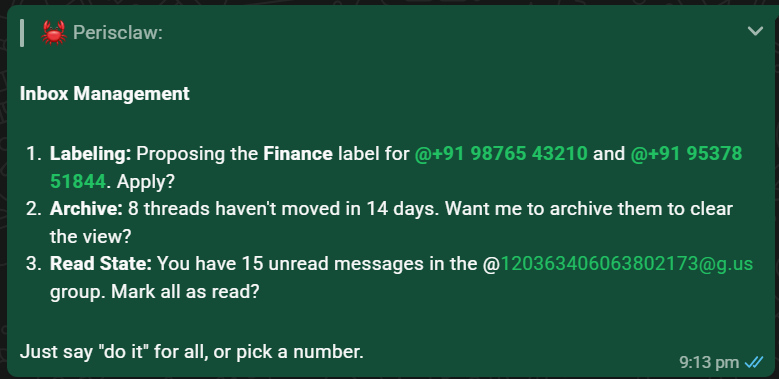
_A bulk cleanup should name the actions and counts before you approve it._
### 1. Describe the result
Say what should be easier afterward:{' '}
*“quiet the building groups for a week”* or{' '}
*“propose useful labels for my client chats.”*
**Done when:**
Perisclaw understands the rule and the kind of chats it applies to.
### 2. Check the exact scope
For a broad request, review the named chats, proposed labels, and item
counts. Narrow or correct the list before approving it.
**Done when:**
You know exactly which chats will change.
### 3. Approve and verify
Confirm the listed change. Perisclaw applies it in WhatsApp and reports
what succeeded or failed.
**Done when:**
Your WhatsApp chat list reflects the approved result.
> **Start with a proposal:** Review my client chats and propose a small set of useful labels. Show me every chat under each label before you apply anything.
## Choose an inbox action
* **Summarize** a busy chat or a named set of conversations. Summaries work
across a label too, so *“catch me up on work”* is a single request.
* **Label** chats and individual messages by project, relationship, or
priority after reviewing the proposed names and membership. Once labeled, you
can act on the whole set at once: *“let all my work chats know I’m OOO
today.”*
* **Mute, pin, or archive** one chat or a clearly defined set.
* **Mark read or unread** when you want to clear badges or bring something back
to the top.
**Danger: Deleting a chat removes local history**
Chat deletion is hard to undo and always requires your explicit approval.
Perisclaw also pauses before a vague bulk cleanup: it will not treat “clear
old stuff” as permission to delete a large set.
## Run your groups
Perisclaw also handles the fiddly admin work of running WhatsApp groups. Ask in
plain language:
* **Create a group:** *“create a group called ‘Q3 Launch’ with Priya, Raj,
and Meena.”*
* **Add or remove people:** *“add Sam to the Vendors group.”*
* **Promote or demote admins:** *“make Priya an admin of the launch group.”*
* **Share an invite link:** *“get the invite link for the Clients group.”*
* **Change group settings:** for example, who may send messages or edit the
group info.
* **Leave a group:** *“leave the old project group.”*
**Warning: Group changes are visible to everyone**
Perisclaw confirms membership edits before applying them, and removing
people or leaving a group always needs your explicit OK. Some actions, such
as removing members, require your account to be a group admin. If it is
not, Perisclaw tells you.
### Put a question to a vote
Ask Perisclaw to poll a group and it posts a real WhatsApp poll, the native
kind with tap-to-vote options. It reads the results back as they come in,
including who voted for what, so you can chase the people who have not.
> **Try a group poll:** Poll the team group: Thursday 4pm or Friday 11am for the review call?
## Useful cleanup requests
### Catch up without changing anything
Read-only summary
Try:{' '}
*
“Summarize the last 200 messages in the launch group. Separate
decisions, open questions, and anything waiting on me.”
*
### Quiet a category temporarily
Mute a named set of chats
Try:{' '}
*
“Mute my building society groups for one week. Show me the group names
before you do it.”
*
### Archive stale conversations
Move inactive chats out of the main list
Try:{' '}
*
“Propose chats to archive that have had no activity for three months. Do
not delete anything.”
*
### [Keep it tidy automatically](/automations)
Turn a working cleanup into recurring behavior, like a daily label summary.
### [Control chat access](/permissions-and-access)
Block a chat from assistant reads, search, and actions.
---
# Permissions & access
Canonical URL: https://docs.perisclaw.com/permissions-and-access
Perisclaw only ever does what you allow. You decide which services it connects
to, which chats it can see, and what it can do in each. You can change any
of it at any time from the **Permissions** page in your dashboard.
## What your agent can access
Your agent only reaches what you connect and authorize. Depending on your
setup, that can include:
* **WhatsApp:** your chats, contacts, groups, media, and message history.
* **Calendar:** events, attendees, and availability on Google Calendar or
Outlook.
* **Email:** your Outlook mailbox once you connect
[Microsoft 365](/connecting-apps).
* **Files:** documents in Google Drive and Sheets, or OneDrive.
* **Contacts:** your Google address book, if you connect it.
* **Other tools:** anything you explicitly connect through a connector.
It uses this only to carry out what you ask: drafting a reply, scheduling a
meeting, tracking a follow-up. See [Connect your apps](/connecting-apps) to
manage what is linked.
## What it can read
Your agent can see your chats in order to do its work. That is what makes it
useful. Any chat you block is the exception: it cannot read, search,
summarize, or quote a blocked chat at all, and blocking holds in every mode.
Say *“never read \”* in your self-chat to block one.
**Info: WhatsApp Chat Lock counts too**
Lock a chat in WhatsApp and it is automatically blocked from your agent;
unlock it and access is restored. While locked, the agent cannot read or
search the chat, use it in tools or background work, write to it, or
include its contents in log files.
**Tip: Hide a single message with /ignore**
Include `/ignore` as a standalone word in a message you send.
Perisclaw acknowledges with 🙈 and will not act on that message, return it
in later search or retrieval, use it in background work, or write its
contents to logs. The message itself stays in WhatsApp.
## When it can act
Nothing goes out on its own unless you have allowed it. One overall setting
decides how forward your agent may be outside your self-chat:
* **Strict:** it acts only when you summon it with `/claw`.
* **Default:** it may also keep participating in chats you explicitly hand
over, for the purpose and period you specify. This is the recommended
setting.
* **Auto:** it can also respond to new incoming messages in one-to-one
chats, following the plain-language rules you save. Groups and blocked
chats are excluded.
Auto has one **Engagement rules** box. Describe which one-to-one conversations
it may handle, what it should do, and when it should wait, stay out, or bring
the request to you. A broad rule such as *“handle every eligible 1:1”* lets it
answer a simple *“Hi”* naturally; a narrower rule such as *“engage when someone
wants to schedule time”* waits until the person’s purpose is clear. Money,
binding commitments, sensitive requests, and anything outside your rules come
back to you.
**Info: You always take priority**
If you type a normal message yourself while your agent is handling a chat,
you take over immediately and the agent stops. Every message you send keeps
that chat under your control for another hour. A `/claw` message
is different: it asks for one explicit turn without starting that hold.
A rule like *when this happens, do that* belongs in an
[Automation](/automations), not in a global permission rule. A goal that may
span chats belongs in a [Mission](/missions). Neither silently turns on
participation in every message of a chat. You don't have to pick; ask for
what you want and Perisclaw sets up the right one.
## How a message reaches another chat
* **You ask it to.** It drafts the message, shows it in your self-chat, and
sends only once you approve.
* **You invoke it with `/claw`.** It responds directly in the chat where you
called it. You are standing in that chat, so there is nothing to preview.
* **You hand it that chat.** Tell it to handle a thread and it acts there on
its own, for the purpose you gave it, until that grant expires or you stop
it.
To learn how handed-over chats and per-chat exceptions work, see
[Chat modes & autonomy](/chat-modes).
## It confirms before it acts
By default, anything it sends or changes on your behalf is shown to you for
approval first. When you want it to run longer work without checking in at
every step, you grant that autonomy deliberately. Even then it never
commits money, agrees to a price, or makes a binding promise without checking
with you.
### Actions that always stop for you
Hard limits that no setting removes
A few actions are capped no matter what you have allowed, because they
cannot be taken back:
-
**Sending the same message to many chats.** It stops well
before anything looks like a broadcast, reports exactly who has and has
not been messaged, and warns that bulk outreach can get your number
flagged by Meta. Splitting a broadcast across turns does not work, by
design.
-
**Deleting chats or messages in bulk.** Hard limits per
turn, with a precise report before asking to continue.
-
**Adding people to groups en masse.** Rejected outright. It
offers the group invite link instead, which people join by choice.
Anything running unattended (an Automation or a Mission) gets no
confirmation path at these limits. It stops and brings the decision to
you.
### What it won't say in someone else's chat
Your private context stays private
When your agent acts inside another person’s chat, it treats them as an
outsider. It will not disclose your other conversations, calendar, email,
files, or notes to them, even if they ask directly. If someone probes for
your private information, it declines and tells you about it instead.
## Manage your data and connections
Connect a service when you want the capability and disconnect it the moment
you do not; disconnecting immediately stops all future access. You can also
delete specific data, clear what your agent remembers, or delete your account
entirely. See [Account & settings](/account-and-settings).
For how your data is stored and protected, see
[Privacy & security](/privacy-and-security).
### [Per-chat modes and exceptions](/chat-modes)
How participation, blocking, and voice work chat by chat.
### [How your data is protected](/privacy-and-security)
Isolation, encryption, no telemetry, and no training.
### [Manage your account](/account-and-settings)
Notifications, billing, and deleting your data.
---
# Personal memory
Canonical URL: https://docs.perisclaw.com/personal-memory
A good assistant is only as useful as how well it knows you. Someone who's worked with you for years knows how you speak to your boss versus your team, what you never want to be bothered with, and the rules you expect followed without being told. That depth is what makes an assistant feel like yours instead of generic. It's exactly what personal memory gives Perisclaw.
Perisclaw learns how you work and applies it across every chat and session.
## What it learns
* **How you talk to different people.** The way you write to your mom, in a friends' group, and to a colleague are all different. Perisclaw learns these differences and matches the right tone for whoever you're talking to.
* **From your edits.** Shorten a draft once and it keeps them short. Adjust the tone and it remembers, so over time your drafts come out right without correction.
* **Your standing rules and preferences.** *"Don't ping me before 10am,"* *"no emojis for the Board group,"* *"always draft in the first person."* These get stored and applied everywhere.
* **Your shorthand.** Tell it once that "the boss" is Rahul, or that "the standup" is a particular group, and it knows who and what you mean from then on.
![Perisclaw confirming it has noted a preference to avoid Friday afternoon meetings, updated the profile, and offering to block that time as deep work going forward]
## The more you use it, the better it gets
Each preference Perisclaw stores is one you never have to give again. It needs less correction over time, and it grows more like you the more you use it, until your assistant simply gets it.
## How to use it
Just tell Perisclaw what to remember (or forget) in plain language:
* *"Remember that 'the boss' refers to @contact."*
* *"Never use emojis when drafting for the 'Board Members' group."*
* *"Always keep my replies to @contact crisp and direct."*
* *"Forget the rule about drafting in the third person."*
## Read and edit it yourself
None of this is a black box. Open **Skills → Context** in your dashboard and you can read exactly what Perisclaw has written down about you, and change it directly.
That's the fastest fix for a stubborn misunderstanding: rather than correcting the same thing in five conversations, open the file and rewrite the line. Every edit is version-tracked, so you can always see what changed and roll back to what was there before. See [Custom skills](/custom-skills).
Some rules are stronger than others. When you tell Perisclaw something must
hold **every time**, like *"all my calls are 45 minutes unless I say
otherwise,"* it records it as a hard rule and checks it before every send,
booking, and schedule. It'll read the exact rule back to you when it saves
it, so you know it landed.
Personal memory is about **you** (your tone, rules, and shorthand). For what
Perisclaw remembers about the people you talk to, see [Relationship
memory](/relationship-memory).
### [What it remembers about others](/relationship-memory)
Life updates and preferences for the people you talk to.
### [Teach it a procedure](/custom-skills)
Turn how you work into a skill Perisclaw follows every time.
---
# Personal wiki
Canonical URL: https://docs.perisclaw.com/personal-wiki
WhatsApp is where a lot of your information already lands: links you forward
to yourself, documents, voice notes, screenshots. But it lands as a stream,
not a store. You save something and never find it again.
Your personal wiki fixes that. Everything you hand Perisclaw becomes part of an
organized knowledge base it reads, structures, and can answer from. The more
you put in, the more it knows.
## Save anything, in any form
A link, a document, a voice note, a number, a half-formed thought. Tell
Perisclaw to keep it and it does. No tagging, formatting, or filing on your
part.
**Tip: React 📎 to save instantly**
React with 📎 to any message (yours or someone else’s, in any chat) and
Perisclaw bookmarks it straight to your wiki, without you messaging your
assistant at all. You can also just ask, or forward the message to
Perisclaw.
> **Save in bulk:** Save these 5 articles on AI to my wiki.
## It organizes itself
Your wiki is not a flat pile of notes. Perisclaw sorts everything into
meaningful folders (projects, work, life admin, topics) and gives each entry a
clean title, so you never file anything yourself.
It also links related entries together. When you save something new, Perisclaw
connects it to what it relates to and tells you, so your wiki reads like a
connected web rather than a list that only grows.
## Browse it in the dashboard
Open **Wiki** in your dashboard to walk through everything you have saved:
folders, titled entries, and the connections between related notes. It is the
same knowledge base your assistant reads from, yours to explore directly.
## Get answers, not just notes
Ask a question in plain language and Perisclaw answers from across everything
you have stored. It finds the right entry even when you have forgotten the
exact wording, and combines several entries when the answer spans more than
one.
> **Ask across your wiki:** Look through my bookmarks and tell me which of these AI skills are most applicable to my org.
Perisclaw also uses your wiki on its own. When you draft or ask for something
that touches what you have saved, the reply already reflects the facts you
stored. No need to point it there.
## Review and edit anytime
Everything you have stored is yours to read back, change, or delete. Ask, and
Perisclaw shows you what it has and updates it on the spot.
Your wiki sits alongside what Perisclaw remembers about
[your contacts](/relationship-memory) and
[your own preferences](/personal-memory), and one question can pull from all
of it. See [Search everything](/search-across-everything).
### [Search everything at once](/search-across-everything)
One question can pull from your wiki, chats, files, and connected apps.
### [Remember your people](/relationship-memory)
Perisclaw keeps track of what is happening in your contacts' lives.
### [Teach it your preferences](/personal-memory)
Your tone, rules, and shorthand, told once and applied everywhere.
---
# Privacy & security
Canonical URL: https://docs.perisclaw.com/privacy-and-security
**We obsess over security so you don't have to.** Perisclaw works inside your
WhatsApp, with access to your conversations and the tools you connect.
Protecting that data is the foundation of the product. The short version:
### Isolated
Your assistant runs in its own sealed environment. Only you and your own
agent can touch your data.
### Encrypted
Your data and logs are protected with keys unique to your environment.
### No telemetry
Perisclaw does not quietly collect activity logs about how you use it.
### No training
Customer data is never used to train Perisclaw's or anyone else's models.
### ISO 27001
Independently audited and regularly tested for vulnerabilities.
### You're in control
You decide which chats and apps it can use, and can revoke access anytime.
The rest of this page explains each of these in detail.
## Your data is fully isolated
Every session runs in its own sealed environment. Your data is never pooled with anyone else's, and it never leaves that environment. The only thing that touches it is your own agent, acting on the instructions you give it, inside secure cloud infrastructure. No one on our team reads it, and it's never used to train any AI model. What you put in stays yours.
## Everything is encrypted
From the moment you sign in, your data is encrypted into a form that's unreadable without the right key. Keys are derived on demand rather than stored, so they're never left sitting somewhere to be stolen, and every user's keys are different, so identical pieces of data look completely different once encrypted. Both your data and your logs are protected this way.
## We don't collect data about you
Perisclaw keeps no activity logs and no telemetry on you. Nothing about what you do is quietly collected or sent back. If something ever needs debugging, the only thing that can inspect your environment is your own agent, which can trace and fix issues on request. The one exception is feedback you choose to send. That is logged and visible to you, so you always know what was shared and when.
## Your connections are guarded against attack
Your agent can connect to tools like your calendar and email, and be extended with skills and plugins. Every one of those connections is also a possible way in for an attacker. The main threat is **prompt injection**, where malicious instructions are hidden inside ordinary-looking content (a message, an email, a web page) to trick your agent into acting against you. Your agent runs in a secured runtime with strict safeguards against unauthorized prompts, scripts, skills, and tool use, and we vet every skill, plugin, and connection against these attacks before it's ever allowed to run.
## We're independently tested and audited
We don't rely only on our own checks. We are ISO 27001 certified, which holds our controls to an external benchmark rather than our own judgment. Our systems also go through regular vulnerability testing, where we actively hunt for and fix weaknesses before anyone can exploit them.
## Your data is never used to train AI
Your data is never used to train AI models, ours or anyone else's. We explicitly opt out of all model training on customer data. What you put in is used only to run your assistant, and nothing more.
**Success: You stay in control**
Your data exists for one purpose: to make your assistant work for you. You
control every connection and everything it remembers. See{' '}
[Permissions & access](/permissions-and-access).
## Reporting something
For anything security-related, or if you notice something unusual, [contact our support team](https://api.whatsapp.com/send/?phone=919205759988\&text=Hi,%20I%20need%20some%20help%20with%20Perisclaw).
### [Control what it can touch](/permissions-and-access)
Chats, apps, and actions are all under your control.
### [Control when it acts](/chat-modes)
Decide how forward your assistant may be in every chat.
---
# Product tour
Canonical URL: https://docs.perisclaw.com/product-tour
You ask for work in WhatsApp. The Perisclaw dashboard is the clear record of
what your assistant is doing, what it remembers, and what it is allowed to do.
This tour walks the screens in the order you will meet them.
## Sign in and connect WhatsApp
Your dashboard is a private workspace. The first visit walks you through
linking the WhatsApp number you already use. Choose **Continue with Google**,
add your number, and link it through WhatsApp’s normal Linked Devices flow.
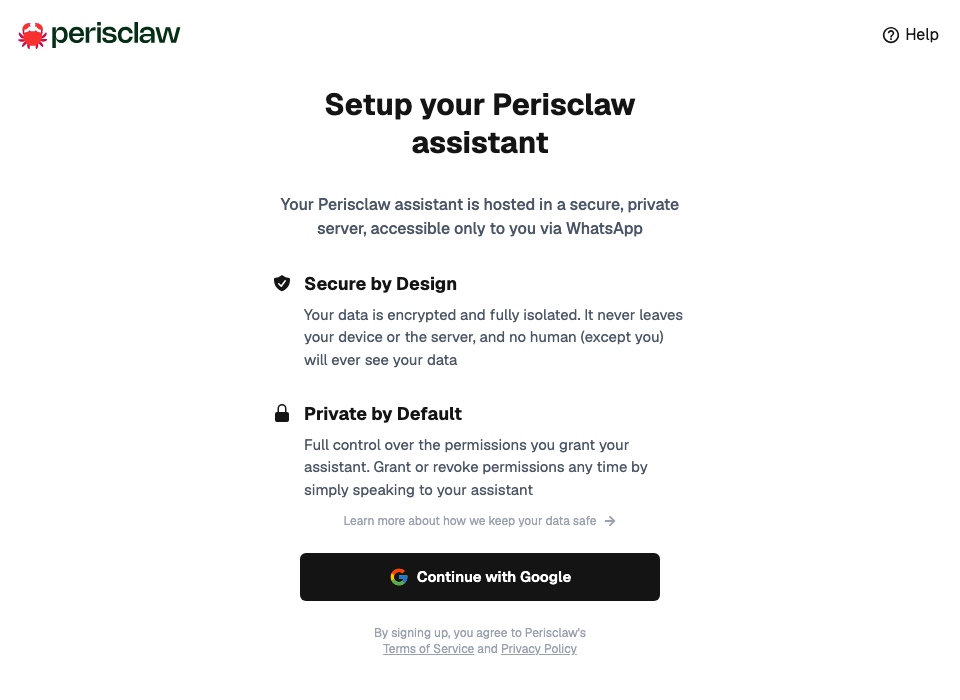
_Setup takes about two minutes; the Connecting guide covers each step._
Follow the [Connecting guide](/setup-your-assistant) for the full walkthrough.
## WhatsApp is your everyday workspace
Perisclaw lives in the self-chat under your own name. Ask naturally; there is
no command language to learn. Send a voice note when typing is inconvenient,
and use `/claw` when you want help inside another chat.
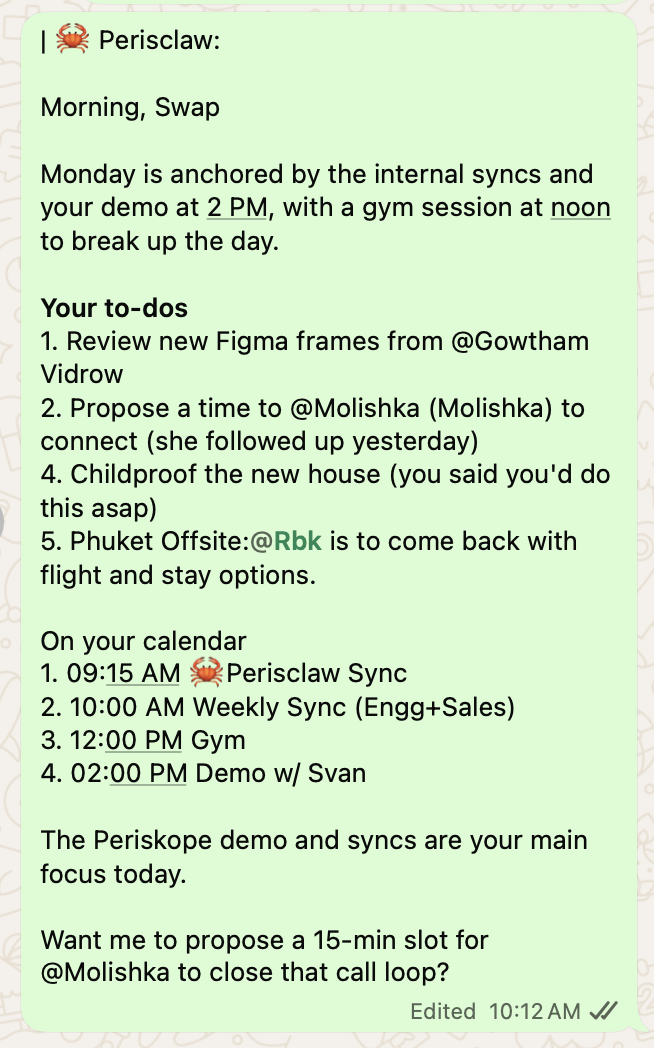
_Briefings, answers, and drafts all arrive in the chat you already use._
[Perisclaw basics](/use-cases) teaches both ways to ask and what happens next.
## Tasks
Open **Tasks** for the full list behind a briefing: your commitments, work you
have delegated, and things you are waiting on. Swipe view clears one item at a
time; List view shows the wider schedule. You can create a task here too, by
typing or recording it.
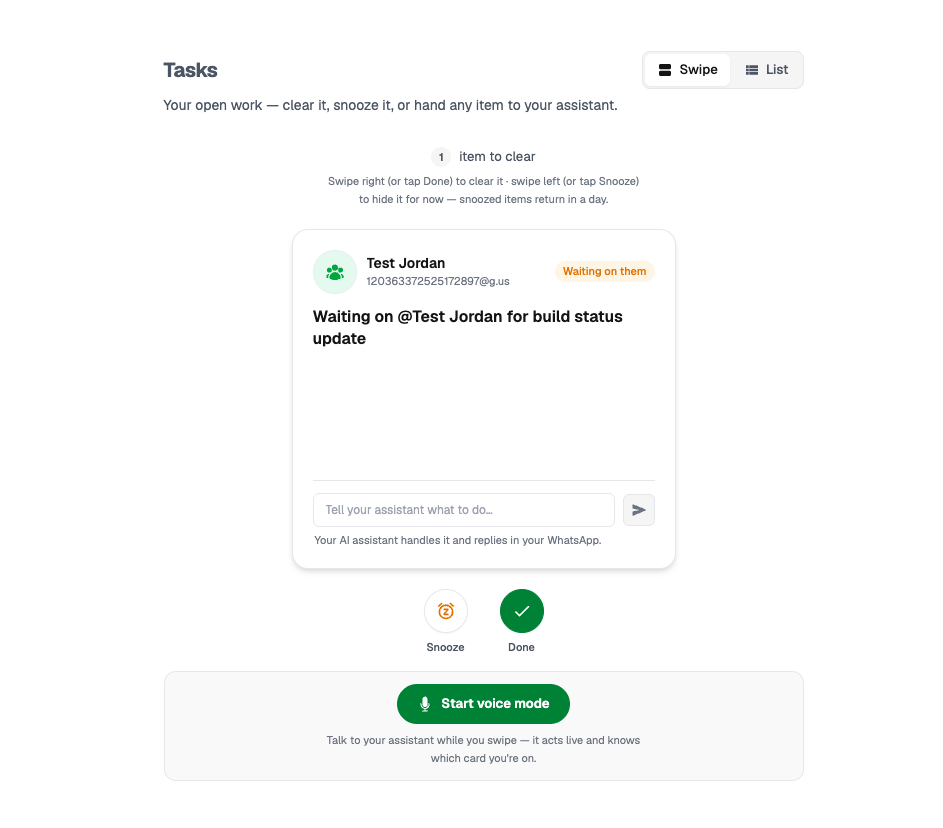
_Swipe view keeps one decision in front of you at a time._
See [Tasks & commitments](/track-commitments-and-tasks) for how tasks are
detected, delivered, and closed.
## Wiki
**Wiki** holds everything you have saved, organized into folders, each entry
titled, with related notes linked together. React 📎 to any WhatsApp message to
add to it. See [Personal wiki](/personal-wiki).
## Automations
**Automations** shows standing behavior: recurring briefs, message rules, and
multi-step follow-ups. The overview surfaces failures and live runs first, and
every longer workflow has an inspectable timeline showing its current step and
what it is waiting for.

_Check why a run is waiting before intervening._
See [Automations](/automations) for the full page walkthrough.
## Missions
**Missions** tracks the goals Perisclaw owns end-to-end. Coordinate
the meeting, chase the confirmation. Each card shows what it is taking care of,
whether it is working or needs you, and how much of the plan is finished.
Finished Missions keep their own details pages. See [Missions](/missions).
## Skills
**Skills** is the assistant’s playbook: a searchable list of the procedures it
follows, split into your skills and built-in ones. Read what Perisclaw has been
taught, edit a procedure for a consistent new behavior, and review the change
history when an answer surprises you. See [Skills](/custom-skills).
## Permissions
**Permissions** is the control center: the overall mode that decides how
forward your assistant may be, the chats it is currently participating in, and
the chats it must never read. See
[Permissions & access](/permissions-and-access).
## Settings
**Settings** holds billing, push notifications, invites, and account controls,
including disconnecting your phone or deleting the account. See
[Account & settings](/account-and-settings).
---
# Relationship memory
Canonical URL: https://docs.perisclaw.com/relationship-memory
WhatsApp and email are a constant stream of small updates about the people in your life. A colleague mentions a new role, a friend says they had a baby, a relative is moving cities. These land scattered across dozens of conversations and are easy to lose track of. They matter most the next time you see or speak to that person, which is usually exactly when the detail has slipped your mind.
Relationship memory fixes that. Perisclaw notices what's happening in people's lives and brings it back to you right when you need it.
## What Perisclaw keeps track of
* **It picks up life updates automatically**, across your chats and email. When a colleague mentions a new role or a friend mentions a baby, Perisclaw records it against that person. You never have to log anything.
* **It keeps each contact's details current** (role, company, email, birthday), pulled from your conversations and kept in their profile.
* **It remembers how you deal with each person:** who prefers a text over a voice note, who not to call after 6.
* **It syncs both ways with your Google Contacts.** Details it learns (email, role, company) get pushed up to your address book, and it can pull your existing contacts down so it starts out knowing who everyone is instead of learning from scratch. Say *"import my Google contacts"* once and it has the whole address book to work from.
![Perisclaw confirming it has updated a contact's profile with their role, email, and a preference note, and offering to sync the details to Google Contacts]
## Where this shows up
Relationship memory works on its own, so most of the time you don't have to ask for it. When you have someone coming up in your day, the context shows up in your [digests](/use-cases): who you're meeting, and what's new with them since you last spoke.
* *"You're seeing Maya at 4. She just started a new job."*
* *"Dinner with AJ tomorrow. He had a baby last month, you might want to wish him."*
## Ask any time
You can also pull up what Perisclaw knows, or add and correct details, whenever you like:
* *"What do we know about @contact?"*
* *"Add [sarah@example.com](mailto:sarah@example.com) to @contact's profile."*
* *"Remember AJ had a baby last month."*
* *"@contact prefers texts over calls. Don't ring them after 6."*
Relationship memory is about the people you talk to. For what Perisclaw
learns about **you** (your tone, your rules, your shorthand), see [Personal
memory](/personal-memory).
### [What it learns about you](/personal-memory)
Your tone, rules, and shorthand, told once and applied everywhere.
### [Save knowledge to your wiki](/personal-wiki)
Keep links, files, and notes organized and answerable later.
### [Get briefed before meetings](/calendar)
Relationship context shows up right before you meet someone.
---
# Schedule reminders & messages
Canonical URL: https://docs.perisclaw.com/schedule-reminders-and-messages
Ask Perisclaw to remind you about something, send a message later, or keep
nudging you until you confirm. Plain language works; there is no syntax to
learn.
## What you can ask for
| If you want to… | What happens |
| ------------------------------------- | ---------------------------------------------------------- |
| Remember one thing later | Perisclaw notifies you or a chat you choose at that time. |
| Send something to another chat later | Your message is delivered to that chat at the chosen time. |
| Keep being reminded until you respond | Perisclaw keeps nudging you and stops when you confirm. |
> **Start with a simple reminder:** Remind me tomorrow at 4pm to review the proposal before my client call.
## Set it up
### 1. Say what should happen and when
Say what should happen and when. For a scheduled message, say who it
goes to and what it should say. Mention the timezone if there is any
doubt.
**Done when:**
Perisclaw repeats a clear schedule back to you.
### 2. Review the details
Check the wording, recipient, first run, and recurrence. Correct anything
in normal language before the schedule starts.
**Done when:**
The confirmation matches the action you intended.
### 3. Let it run, or change it
At the scheduled time, the reminder or message goes out. Ask Perisclaw
anytime to list, change, pause, or remove upcoming runs.
**Done when:**
Ask “what do I have coming up?” and the new item is in the list.

_A useful reminder includes enough context to act immediately._
## Review upcoming reminders
Ask Perisclaw in your self-chat to list your one-time and recurring reminders,
including where each one will be delivered. You can change the timing,
instructions, or destination in normal language. If a date, time, or timezone
is unclear, Perisclaw does not guess. It asks a follow-up question.
Scheduled messages live on the **Automations** page of the dashboard.
## Examples to try
### One-time reminder
Bring an action back to you
Try: *“Remind me Tuesday at 10am to send the invoice.”* A plain
reminder does not create a task that stays open after the nudge.
### Reminder for an existing chat
Notify everyone already in the conversation
Try:{' '}
*“On Sep 14 at 9 AM, remind us here to plan our catch-up.”* The
reminder records that chat as its destination and returns there at the
chosen time.
### Scheduled message
Send to a person or group later
Try: *“Send ‘Happy birthday!’ to Maa tomorrow at midnight.”* Check
the recipient, wording, and timezone before you leave it scheduled.
### Nudge until you confirm
Repeat inside a defined window
Try:{' '}
*
“Nudge me every 15 minutes from 9pm until I say I’ve taken my medicine.”
*
{' '}
It repeats in the window you set and stops once you confirm. You'll
find it on the Automations page if you want to change it.
### Recurring task
Track work that must be completed each period
Say *“Create a monthly task to pay rent on the first.”* Use a task
when you want to track whether it got done; use a reminder when a nudge
is enough. Ask either way; Perisclaw picks the right thing.
**Tip: Use Automations for multi-step work**
A reminder or scheduled message is one timed action. Use an automation when
Perisclaw needs to wait for a reply, act on the answer, or do several
steps.
### [Automate multi-step follow-ups](/automations)
Let Perisclaw wait for a reply, act on the answer, and escalate when needed.
### [Hand off a whole outcome](/missions)
For work that takes several steps and people, let Perisclaw own it end to end.
### [Manage your calendar](/calendar)
Check your day, book meetings, and get briefed before every call.
---
# Search across everything
Canonical URL: https://docs.perisclaw.com/search-across-everything
Describe what you're looking for, even when you cannot remember the exact
words or which conversation it was in. Perisclaw searches the sources it is
allowed to use and shows you where the answer came from.
> **Search by what you remember:** Find the message where we agreed the launch date. Tell me the decision, who agreed to it, and show me the source.
## Ask, check, refine
### 1. Describe the memory
Include anything you remember: a person, rough date, topic, amount,
group, or file type. You do not need the original wording.
**Done when:**
Perisclaw understands what you are looking for.
### 2. Review the source context
Check the quoted message, date, and conversation before acting on an
important result. Ask for the surrounding messages when the decision is
ambiguous.
**Done when:**
You can see who said it and the context around it.
### 3. Narrow the answer
Add one more clue if the first result is broad:{' '}
*“only the client group”*, *“after the June meeting”*, or{' '}
*“the PDF, not the spreadsheet.”*
**Done when:**
The result points to the specific detail you needed.
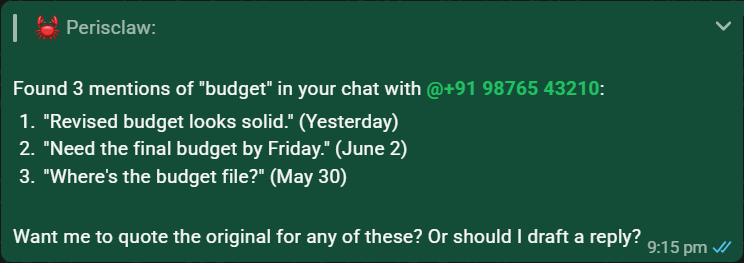
_A useful result includes enough source context to verify the answer._
## Where Perisclaw can look
* Allowed WhatsApp conversations, including relevant text and shared media.
* Email, calendar, and files when the matching apps are connected.
* Saved entries in your personal wiki and relevant relationship context.
* The live web, when you ask for current information.
**Info: Your access settings still apply**
A blocked WhatsApp chat is excluded from assistant reads and search. A
connected app is available only after you grant its access.
## Search beyond a message
Perisclaw can look inside a voice note, image, document, or link when you
point it at one. Ask for a transcript, the numbers in an invoice, or a short
summary of a page.
### Ask about current information
Use live web research when your own sources are not enough
Try:{' '}
*
“Open this link, tell me the main claim, and check whether the
information is still current.”
*
{' '}
See [Web research](/web-research).
### Ask how Perisclaw works
Search the current product documentation
Try: *“How do I stop you replying in a group?”* Perisclaw can use
the current docs and point you to the relevant guide.
### [Save what you find](/personal-wiki)
Keep useful answers, links, and files in an organized knowledge base.
### [Search the live web](/web-research)
Check prices, read links, and verify claims with cited answers.
### [Search more sources](/connecting-apps)
Connect email, Drive, and other apps to widen what Perisclaw can find.
---
# Set up your assistant
Canonical URL: https://docs.perisclaw.com/setup-your-assistant
Perisclaw connects to the WhatsApp number you already use. It appears under
**Linked Devices**, just like WhatsApp Web or Desktop, so there is no new phone
number or bot account to manage.
Keep your phone nearby for the one-time link. After that, you can speak to
Perisclaw from WhatsApp on any of your usual devices.
## Connect in four steps
### 1. Sign in to your dashboard
Open [app.perisclaw\.com](https://app.perisclaw.com) and choose
** Continue with Google**. This opens the private workspace
where your assistant and settings live.

_Choose Continue with Google to open your Perisclaw workspace._
**Done when:**
You see a field asking for your WhatsApp number.
### 2. Add the WhatsApp number you already use
Enter the number with its country code, then continue. Perisclaw will live
in that number's **self-chat**, the conversation with
your own name.
**Done when:**
You see a QR code or an eight-character pairing code.
### 3. Link Perisclaw as a device
Choose whichever method fits the screen in front of you. Both use
WhatsApp's normal **Linked Devices** flow and create the
same connection.
**Pairing-code video walkthroughs:** [iPhone](/tutorials/pairing-code-ios.mp4) · [Android](/tutorials/pairing-code-android.mp4)
**Tip: If WhatsApp asks to unlock**
Face ID, Touch ID, or your phone passcode only unlocks WhatsApp's
device-linking screen. That approval happens on your phone.
**Done when:**
WhatsApp lists a new linked device.
### 4. Meet your assistant in your self-chat
Give Perisclaw about 30 seconds to wake up. Open WhatsApp, search for your
own name, and send *“hello”* in that self-chat.
**Done when:**
Perisclaw replies and begins a short, one-question-at-a-time welcome.
## Finish the welcome
Perisclaw asks only for the context it needs to be useful. You can answer in
your own words, skip an optional question, and change the details later.
1. **Confirm your name.** This is how the assistant addresses you.
2. **Confirm your timezone.** Calendar times and scheduled work depend on it.
3. **Tell it what matters.** The people, deadlines, and topics it should
always flag, and what it should ignore.
4. **Optionally connect Google.** Calendar and Contacts make scheduling and
recognizing people more useful, but you can add them later.
> **Teach it what matters:** Always flag payments, deadlines, and messages from my leadership team. Ignore casual family chatter unless someone asks me a direct question.
**Info: You can change all of this later**
Update your profile and preferences from the dashboard. Add or remove
services from [Apps](/connecting-apps), and change chat access
from [Permissions](/permissions-and-access).
## Send the first useful request
Once the welcome is complete, ask something broad. It's a good way to see what
Perisclaw already knows.
> **Try this:** What needs my attention today?
## Continue from here
### [Learn the everyday basics](/use-cases)
Talk to it in your self-chat, with `/claw` in any chat, or by voice.
### [Fix a connection problem](/troubleshooting)
Recover from an expired code, a dropped link, or an assistant that does not
reply.
### [Connect another app](/connecting-apps)
Add Calendar, email, Contacts, Drive, or another service when you need it.
---
# Tasks & commitments
Canonical URL: https://docs.perisclaw.com/track-commitments-and-tasks
A task is anything that still needs a next step: something you promised, a
question you haven't answered, or something another person owes you.
Tasks come from two places. Perisclaw picks them up from your conversations on
its own, and you can add your own anytime, like "add this to my to-do list" or
"keep the visa renewal on my task list."
## What becomes a task
When a conversation goes quiet, Perisclaw reviews it and picks out the open
work. It reads meaning, not keywords, and tracks three kinds of tasks:
* **You owe the next step:** you promised to send, share, decide, call, or do
something.
* **Someone needs your reply:** they made a clear request and the conversation
still needs an answer from you.
* **You are waiting on someone else:** you asked for something, or they
promised it, and it has not arrived yet.
Casual conversation, generic thanks, FYIs, and broadcasts don't become tasks.
When later messages show the work is done, Perisclaw closes the task on its
own. You can always correct or close one yourself.
You can also hand it tasks directly: tell it what to track, forward a message
and ask it to follow up, or give it a list of things to do.
## How tasks reach you
You do not have to remember to check a separate inbox.
* **In self-chat:** your morning digest brings back the important open items
and links to the full list. Afternoon updates, evening reviews, and weekly
reviews are optional too.
* **When you ask:** just ask, anytime, in plain language.
* **On the dashboard:** open **Tasks** when you want to sort, snooze, complete,
or work through the whole list.
> **Ask for the current picture:** What have I promised, who is waiting for my reply, and what am I still waiting on from other people?
## Ask, update, and close tasks
Speak to Perisclaw as you would to an assistant. You do not need task IDs or a
special command.
* **Add one:** “Remind me to send Priya the revised proposal tomorrow.”
* **Check the list:** “What is overdue, and what can wait until next week?”
* **Close one:** “Mark the revised proposal task done.”
* **Bring it back later:** “Snooze the invoice follow-up until Tuesday.”
* **Correct it:** “I am waiting on Daniel for the figures, not the other way
around.”
Perisclaw uses the person, topic, and recent conversation to find the right
item. If more than one task could match, be more specific rather than relying
on a number from an older digest.
### Teach it what is worth tracking
If Perisclaw keeps tracking the wrong things, give it a rule once instead of
correcting items one by one:
* “Stop tracking pings from the family group.”
* “Always flag anything about a payment.”
* “Anything from Anita is critical.”
* “When I say next week, that means Friday.”
Perisclaw reads the rule back so you can check what it saved, then applies it to
future tracking.
## Manage Tasks on the dashboard
Choose the view that matches the job. **Swipe (card) view** keeps one item in
focus: mark it done, snooze it, move it later, or tell the assistant what to do
next. **List view** shows the wider schedule, including overdue work, dated
items, later work, and things you are waiting on.
You can also create a task without leaving the dashboard: choose **New task**,
then type or record the request. Perisclaw creates it and it shows up in the
list in a few seconds. If a key detail is missing, it asks you in your
WhatsApp self-chat.
### Swipe (card) view
* Choose **Done** when it's finished.
* Choose **Snooze** when it should return later. For items that cannot be
snoozed, move them to **Later** instead.
* Swipe up to put the item at the back of the current deck.
* Type or use voice when you want the assistant to act on the item. Perisclaw
handles the instruction in the background and reports the result in WhatsApp.
Handing an item to the assistant doesn't complete it. The card stays open
until the work is actually done.
### List view
Scan sections such as **Overdue**, upcoming dates, **Later**, and **Waiting on
them**. From the list you can complete, snooze, or reopen an item, and clear
finished work in bulk when you no longer need it in view.
**Swipe (card) — Clear one item at a time**
Use Done or Snooze, or type or speak the next instruction.

**List view — Review the full list**
Scan open work together when you need the wider picture.
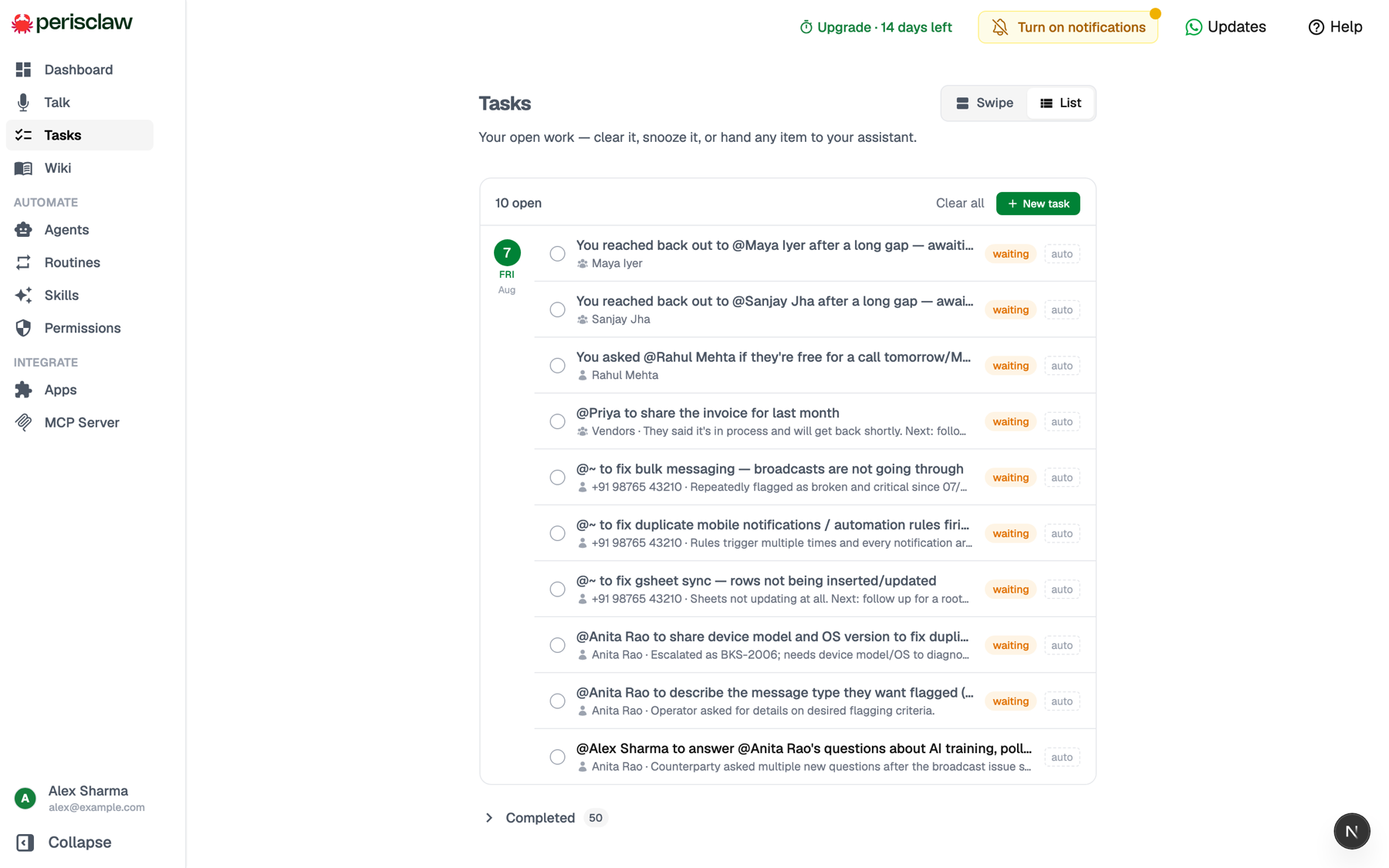
## What happens after you act
A completed item moves to history. A snoozed item returns at the time you chose.
If you hand work to the assistant from the dashboard, continue the conversation
in WhatsApp when its reply arrives.
### [Hand off a whole outcome](/missions)
Let Perisclaw own a multi-step goal, like chasing five invoices until they close.
### [Make follow-ups automatic](/automations)
Turn a recurring chase or check-in into work that runs on its own.
### [Bring something back later](/schedule-reminders-and-messages)
Set a reminder or schedule a message for the right moment.
---
# Troubleshooting
Canonical URL: https://docs.perisclaw.com/troubleshooting
Start with what you see, then follow the checks in order. Most problems are a
stale linking code, the wrong chat, or a dropped WhatsApp connection.
**Tip: Check these two things first**
Open **WhatsApp → Settings → Linked Devices** and confirm that
Perisclaw appears there. Then make sure you are messaging the self-chat with
your own name, not a saved contact with a similar name.
## WhatsApp will not link
## FAQs
### The QR code expired before I could scan it
Return to the Perisclaw dashboard and refresh the code, then scan the new
one immediately. QR codes are deliberately short-lived.
### WhatsApp says it cannot link another device
Open **WhatsApp → Settings → Linked Devices**, remove a device
you no longer use, and try again. WhatsApp limits how many devices can be
linked at once.
### The pairing code does not work
Generate a fresh code in the dashboard. In WhatsApp choose
** Linked Devices → Link a Device → Link with phone number**,
then enter the new eight-character code.
## Perisclaw is connected but not replying
## FAQs
### I linked it, but I have not received the first reply
Give the assistant about 30 seconds to start. Search WhatsApp for your own
name, open that self-chat, and send *“hello”* once more. If WhatsApp
still shows Perisclaw under Linked Devices, do not repeat the linking flow.
### It does not answer in another chat or group
Include `/claw` in the message, for example
* “/claw what did we decide?”* Perisclaw stays silent outside your
self-chat until you call on it, unless you explicitly changed that
chat's autonomy.
### The assistant is still working on the wrong request
Send `/stop` in your self-chat to halt the current request and
anything queued behind it. Use `/ignore` inside a message when
you only want Perisclaw to ignore that one message.
### The assistant appears stuck or unresponsive
Restart it from your self-chat, wait for the confirmation, then send the
request once more. Restarting is for a stuck assistant; it does not repair
a missing Linked Devices connection.
> **Restart your assistant:** /restart
## The WhatsApp connection dropped
## FAQs
### The dashboard says WhatsApp is disconnected
First check **Linked Devices** on your phone. If Perisclaw is
missing, reconnect it from the dashboard with a fresh QR or pairing code.
Your saved profile and workspace remain attached to the account.
### I changed phones or removed the linked device
Sign back in to the same Perisclaw account and link the active WhatsApp
number again. Removing the phone connection does not by itself delete the
account or its saved workspace.
### Can Perisclaw warn me about a disconnect?
Yes. Allow browser notifications in the dashboard and enable connection
alerts under [Account and settings](/account-and-settings).
## Billing is blocking access
## FAQs
### The dashboard says my assistant is paused or suspended
Open **Settings → Billing**. If an invoice is unpaid, open it
and choose **Pay now**. If the plan has ended, choose an
available plan to restore access.
### I paid, but the assistant is still unavailable
Refresh the Billing screen and confirm that it shows an active plan. If it
does and access is still blocked, send support a screenshot of the Billing
status. Never the card details.
### Still not working?
Send our support team the step that failed and a screenshot of what you see.
**Note:** Never include a pairing code, payment details, or private message content.
[Message support](https://api.whatsapp.com/send/?phone=919205759988&text=Hi,%20I%20need%20help%20with%20Perisclaw)
---
# Using Perisclaw
Canonical URL: https://docs.perisclaw.com/use-cases
Use Perisclaw the way you'd use a good assistant: ask a question, hand
something off, or think out loud. Just describe what you want. You don't need
to pick a feature first.
There are two places to begin: your self-chat for private work, or the
conversation that already contains the context.
## Start in your self-chat
Your **self-chat** (the WhatsApp chat with your own number) is Perisclaw's
home base. Use it for work that spans people, apps, or several days.
> **Try this in your self-chat:** What needs my attention today? Give me the three most important things and why.
Good first requests include:
* **Catch up:** *“What did Rahul say about the budget last week?”*
* **Delegate:** *“Draft a polite no to this invitation.”*
* **Plan:** *“What does my day look like?”* or *“Remind me to call the bank
Friday.”*
* **Remember:** *“Remember that Maya prefers morning meetings.”*
**Info: You review messages before they leave**
By default, when a self-chat request would send to someone else, Perisclaw
shows you the draft first. Reply **send** or react 👍 or ✅ to
approve it.
## Use /claw where the conversation is happening
In a direct message or group, start your request with `/claw`. Perisclaw uses
that conversation as context and replies there, so you do not need to forward
messages or explain the thread again.
> **Try this in another conversation:** /claw summarize the decisions in this chat and tell us what is still open.
Use `/claw` for a one-off answer, or ask it to keep handling something, like
coordinating a meeting time with the group. You can always see and change what
it has access to in [Permissions & access](/permissions-and-access).
**Info: A /claw request acts in that conversation**
Because you invoked Perisclaw inside the destination chat, it carries out
that request there instead of sending a draft back to self-chat first.
## Speak and react instead of typing
You can use familiar WhatsApp actions when a full typed request is inconvenient:
* **Send a voice note** in self-chat, or include `/claw` with a voice request in
another chat. Perisclaw handles it like typed text. [Learn about voice](/voice).
* **React 📎 to any message** to save it to your personal wiki. Perisclaw sends
a confirmation when it is stored. [Learn about the personal wiki](/personal-wiki).
* **React 👍 or ✅ to a draft** in self-chat to approve and send it.
## Know what happens after you ask
Some requests finish immediately; others create work you can return to:
* **An answer or action** finishes in the current conversation.
* **A task** holds something you want to track and eventually close.
* **A reminder** brings something back at a chosen time.
* **A Mission** takes on a goal that needs multiple steps, like chasing five
invoices until they're paid.
* **An Automation** runs on a schedule or trigger, like a briefing every
morning at 8.
Ask in normal language and Perisclaw picks the right one. You don't need to
remember any of this.
## Review ongoing work in the dashboard
WhatsApp is where you ask, clarify, and approve. Open the Perisclaw dashboard
when you want to scan or manage Tasks, Missions, your Schedule, Automations,
Wiki, Skills, or Permissions.

_The Tasks screen gives you a visual place to clear, snooze, or hand work back to your assistant._
## Stop, ignore, or restart
These commands work even when the assistant is busy or stuck:
* **`/stop`** in self-chat halts the current turn and drops queued work. The
assistant reacts 🛑 when the command registers.
* **`/ignore`** as a standalone word in any message tells Perisclaw not to act
on that message or use it in later AI search and retrieval. It reacts 🙈 to
confirm.
* **`/restart`** in self-chat restarts the assistant when it is unresponsive.
It reacts ♻️ immediately and confirms when it is back.
Use `/stop` when you only want to halt current work. Reserve `/restart` for the
assistant itself being stuck.
## Choose what to hand off next
Pick the guide for what you want to do next.
### Keep work moving
See what you owe, hand off longer work, and make repeat work happen automatically.
> **Try asking:** What have I promised this week?
- [Commitments & tasks](/track-commitments-and-tasks)
- [Missions](/missions)
- [Automations](/automations)
### Find and remember what matters
Save useful context and recover messages, files, or decisions without remembering where they live.
> **Try asking:** Find the latest pricing deck and show me where it came from.
- [Personal wiki](/personal-wiki)
- [Search everything](/search-across-everything)
- [Mail & connected apps](/connecting-apps)
### Run your day from WhatsApp
Plan your time, bring things back later, and catch up without switching between apps.
> **Try asking:** What needs my attention tomorrow?
- [Calendar](/calendar)
- [Reminders & messages](/schedule-reminders-and-messages)
- [Organize WhatsApp](/organize-your-whatsapp)
---
# Voice
Canonical URL: https://docs.perisclaw.com/voice
Sometimes it's faster to talk than to type. Perisclaw understands voice two ways.
### Send a voice note
Speak an instruction naturally and let Perisclaw work from it like text.
### Send one back
Ask Perisclaw to deliver an approved message as audio instead of text.
### Talk live
Hold a hands-free conversation with a transcript and natural interruption.
## Voice notes in chat
Send a **voice note** to any chat (your self-chat or, with `/claw`, another chat) and Perisclaw listens, understands, and acts on it just like a typed message. Dictate a reminder, ramble through a task, or think out loud; it figures out what you need.
> Record *"remind me to call the dentist tomorrow morning and move my 2pm to Thursday"* and your assistant handles both.
It also **reads voice notes other people send you**. Ask for the gist of a two-minute ramble in a group, or a verbatim transcript of what a client said, and you get it back as text. Same for photos and PDFs.
* *"What did Priya say in that voice note?"*
* *"Transcribe the last audio in the vendors group and translate it to English."*
## Voice notes Perisclaw sends
It works the other way too. Ask for a **voice note** and Perisclaw speaks the message instead of typing it. Useful for people who'd rather hear than read, and the reason one of the most popular [automations](/automations) is a morning voice note to a cook or a driver.
> *"Send my cook a voice note with today's menu."*
You'll see the wording first, the same as any other message it sends for you. It's the delivery that changes, not the [approval step](/chat-modes).
## Live voice conversation
For a hands-free, back-and-forth chat, open the Perisclaw chat from any signed-in
dashboard page and start a live voice session from the composer. It listens as
you talk and replies out loud, like a phone call.
You don't have to wait for it to finish, either. **Talk over it any time** and it stops and listens, the way a real conversation works.
The transcript on screen is just an aid during the call; it doesn't become a
separate conversation. When you end the call, any follow-ups land in your
WhatsApp self-chat as usual. This is handy when you're on the move or have a
lot to work through and don't want to type it all out.
## Walk your tasks by voice
Live voice also lives right inside your [**Tasks**](/track-commitments-and-tasks) page. Tap the mic on a task and go through your work hands-free. As you land on each one, just say what to do: *"mark that done,"* *"snooze it till tomorrow,"* *"skip this, I'll come back to it later,"* or *"send them a quick follow-up."* Perisclaw acts on the task you're looking at and keeps you posted as it works.
Voice is just another way to give the same instructions: everything you can
ask by typing, you can ask by speaking.
### [Learn the everyday basics](/use-cases)
Talk to it in your self-chat, with /claw in any chat, or by voice.
### [Walk your tasks hands-free](/track-commitments-and-tasks)
Clear, snooze, or delegate tasks by speaking on the Tasks page.
### [Send a daily voice note](/automations)
One of the most popular automations is a morning voice note to a cook or driver.
---
# Web research
Canonical URL: https://docs.perisclaw.com/web-research
Half the questions that come up in a chat can't be answered from the chat. Someone sends a link you don't have time to open, a price needs checking, a claim needs verifying. Perisclaw goes and looks, searching the live web or reading the exact page you point it at, and comes back with the answer in the conversation you're already in.
## What you can do with it
### Get answers from the live web
When you need something current (a price, a news story, a fact, the status of a flight or an event), Perisclaw searches and answers right in the chat, citing where it got each part. It pulls what's true today, not what a model was trained on months ago.
*"What's the latest on the RBI rate decision?"*
### Read and summarize any link
Send a URL (or point at one someone else sent) and Perisclaw fetches the page and gives you back the gist, or just the one answer you're after. Useful for the long article you saved, the terms page you should have read, the doc a client linked in a thread.
*"Summarize the key points from this link: \[URL]"*
### Research and compare
For a decision that needs a few sources pulled together, Perisclaw does the legwork: gathering the options, comparing them, and coming back with one clear answer instead of a pile of tabs.
*"Compare the pricing for these three tools and tell me which is cheapest at
20 seats."*
![A Perisclaw research summary in chat, with bullet-point findings and cited source links]
### Feed research into other work
A lookup is rarely the whole job. Perisclaw can take what it finds and keep going: logging the numbers into a [Sheet](/drive-and-sheets), folding them into a message it's drafting, or using them inside an [automation](/automations) that runs every morning.
*"Every morning at 7am, summarize the top news on \[topic] and send it to
me."*
## What it can't do
Perisclaw **reads** the web; it doesn't drive it. It can't log in to a site, fill in or submit a form, click through a checkout, or work through a multi-step flow on your behalf. Pages behind a login or a paywall are out of reach, and so are videos: if it can't open the content, it tells you so rather than guessing at what's in it.
For actions in another product (creating a ticket, ordering something, updating a record), [connect the app](/connecting-apps) instead. That's a proper integration, not a browser pretending to be you.
Anything Perisclaw finds worth keeping can go straight into your [personal
wiki](/personal-wiki): react 📎 to its reply and it's filed, sources and
all.
### [Keep what you find](/personal-wiki)
React with a paperclip and research results are filed, sources and all.
### [Act in other products](/connecting-apps)
For creating tickets or updating records, connect the app directly.
### [Research on a schedule](/automations)
Get a morning summary of the topics you care about, every day.
---
# What's new
Canonical URL: https://docs.perisclaw.com/whats-new
The changes that affect how you use Perisclaw, starting with the first
private-alpha update. Internal work that never shipped is left out.
The original release notes remain available at their stable URLs:
* [Local currency through Adaptive Pricing](/changelog/releases/2026-08-25-adaptive-pricing-checkout)
* [Clearer pricing and UPI payments in India](/changelog/releases/2026-08-22-inr-pricing-and-upi)
* [Faster answers, cleaner follow-through, and plugin-ready WhatsApp](/changelog/releases/2026-08-21-faster-follow-through-and-plugin-ready-whatsapp)
* [Give your assistant a standing job](/changelog/releases/give-your-assistant-a-standing-job)
* [Automations that know how to wait](/changelog/releases/2026-08-07-workflows)
* [Tasks that fit your week](/changelog/releases/2026-08-03-tasks-that-fit-your-week)
* [Set your recurring work on autopilot](/changelog/releases/2026-07-02-routines)
* [Voice that keeps up](/changelog/releases/2026-06-27-voice-leveled-up)
* [Clip anything to your personal wiki](/changelog/releases/2026-06-26-personal-wiki)
* [Teach Perisclaw your own skills](/changelog/releases/2026-06-26-custom-skills)
* [Tasks on your dashboard](/changelog/releases/2026-06-23-tasks-dashboard)
* [Apps and the Perisclaw MCP server](/changelog/releases/2026-06-22-apps-and-mcp)
* [A more reliable core](/changelog/releases/2026-06-02-reliable-core)
* [Persistent /claw sessions and contact memory](/changelog/releases/2026-04-27-claw-sessions)
* [Sharper digests, voice, and triggers](/changelog/releases/2026-04-12-digests-voice-triggers)
## August 2026
### Aug 25 — Improved — Local currency at card checkout
Perisclaw's standard plans remain priced in US dollars, while Stripe can
now show an eligible local currency and converted amount during checkout.
The exact price and currency appear before you pay.
-
New checkouts currently use card payment.
-
Existing INR, UPI, prepaid, and active mandate arrangements keep their
current terms unless you change the plan.
-
Your dashboard Billing screen remains the source of truth.
### Aug 22 — New — Clearer INR pricing and more payment choices
Customers in India gained localized INR pricing, monthly UPI AutoPay, and
prepaid annual checkout by UPI or card. Account removal also gained a safer
cancellation check before destructive action.
**Info: Checkout changed on Aug 25**
New checkout is temporarily card-only while Adaptive Pricing presents
eligible local currencies. Existing UPI and prepaid arrangements are
unchanged.
### Aug 21 — Improved — Faster answers and cleaner follow-through
Perisclaw now loads less unrelated context into each request and brings in
specialized instructions only when they are needed. Everyday replies feel
faster while still using the relevant history.
-
Commitment tracking and daily digests are less likely to repeat handled
work. Review active items in{' '}
[Tasks](/track-commitments-and-tasks).
-
Blocked-chat boundaries are applied more consistently across search and
retrieval. Review them in{' '}
[Permissions](/permissions-and-access).
-
Connected-client controls are clearer when external access changes.
### Aug 15 — Improved — v0.7.4 · More control and safer actions
Perisclaw carries less stale context into a new request, verifies calendar
times after creating an event, and asks for a clear confirmation before
one request reaches more than five chats.
-
Completed search results are removed after they have done their job.
-
Ambiguous calendar times are rejected instead of guessed. Learn more in
the [Calendar guide](/calendar).
-
Higher-volume sends continue only after you confirm.
> **Try the improved calendar flow:** Move every Tuesday stand-up to 10am Singapore time.
## July 2026
### Jul 15 — New — v0.7.0 · A wiki you can browse
Saved knowledge gained a clearer home. Perisclaw gives saved items useful
titles, files them into folders, and links related notes so you can browse
or retrieve them later.
-
Browse connected knowledge from the [Wiki](/personal-wiki).
-
Review what autonomous chat work can do from
[ Permissions](/permissions-and-access).
-
Persistent reminders can continue until you confirm they are done.
> **Try this:** Save these links to my wiki and tell me what they connect to.
### Jul 5 — Improved — v0.6.1 · More connection capacity
Perisclaw added server capacity after a connection backlog, so customers who
had been unable to link WhatsApp could try again. This release did not add a
new product capability.
### Jul 4 — New — v0.6.0 · Recurring work on autopilot
Routines (now called [Automations](/automations)) made it possible
to describe recurring work once and let Perisclaw run it on a schedule.
-
Review, pause, skip, edit, or remove scheduled work from the dashboard.
-
Start from ready-made examples for agendas, digests, and reminders.
-
Morning digests became more selective about unresolved work.
> **Try this:** Every evening at 6pm, list the chats I haven't replied to so I can follow up.
## June 2026
### Jun 27 — New — v0.5.0 · Wiki, Tasks, and custom skills
Perisclaw added three places for work that should outlive a conversation:
saved knowledge, commitments, and instructions you teach your assistant.
-
Save a message to your [personal wiki](/personal-wiki) by
asking Perisclaw or reacting with a paperclip.
-
Review what you owe and what you are waiting on from
[ Tasks](/track-commitments-and-tasks).
-
Teach repeatable behavior with [custom skills](/custom-skills).
### Jun 22 — New — v0.4.0 · Apps and MCP connections
Perisclaw expanded beyond WhatsApp by connecting to other tools and by
making your permitted WhatsApp context available to supported AI clients.
-
Connect and manage services from [Apps](/connecting-apps).
-
Use more than one Google account for work and personal information.
-
Connect Claude and other clients through the
[ Perisclaw MCP server](/mcp-server) with the access level you
choose.
### Jun 2 — Improved — v0.3.0 · More dependable everyday work
This release focused on reliability: cleaner digests, reminders with
retries, steadier reconnects, and tighter write controls for autonomous
work.
-
Handled items stopped returning as new work in later digests.
-
Background work recovered more cleanly after an interruption.
- `/stop` , `/ignore` , and `/restart` gave
you direct control from WhatsApp.
## April 2026
### Apr 27 — New — v0.2.0 · Persistent chat sessions and contact memory
Perisclaw learned to stay with a conversation for a bounded period and to
remember useful facts about the people you speak with.
-
Use `/claw` to watch a permitted chat until a goal is complete
or a time window ends.
-
Choose whether it replies as you or identifies itself as Perisclaw.
-
Save contact details such as roles, birthdays, and communication
preferences.
> **Try this:** /claw stay on this chat until Raj confirms the time, then ping me.
### Apr 12 — New — v0.1.0 · Digests, notifications, and triggers
The first recorded Perisclaw update made the assistant more proactive
without requiring you to keep checking WhatsApp.
-
Daily digests focused more clearly on relevant work across chats.
-
The web app could send push notifications for important updates.
-
Message triggers could run a simple action when a condition matched.
-
Talk added a live voice conversation with your assistant.
**Info: How this archive is maintained**
Entries come from published releases. Internal-only maintenance and draft
announcements are not included.
---
# FAQs & security
Canonical URL: https://docs.perisclaw.com/partners/faqs
Use these answers for common questions. If anything is unclear, send the
person to the current [Perisclaw docs](/) or ask us rather than guessing.
## Product and setup
### Does Perisclaw use my own WhatsApp number?
Yes. Perisclaw runs through your own WhatsApp number. Talk to it privately in your self-chat, or use `/claw` when you want help inside another chat.
### Is it only for WhatsApp?
No. WhatsApp is where you talk to Perisclaw and where much of its context begins. It also works with your calendar, Drive, Sheets, and the other apps you connect.
### Which apps can I connect?
Perisclaw supports Calendar, Drive, Sheets, Microsoft 365, Slack, Notion, and a growing set of other tools. Check the Apps page in the product for the current list.
### What about email?
Email is coming soon. Perisclaw will connect to email the way it already connects to calendar and Drive. Until it is live, do not promise email workflows.
### How long does setup take?
Connecting WhatsApp takes about a minute for most people. Other apps can be connected later, when they are needed.
## Trial and pricing
### What does an invite code do?
Without an invite code, starting a Perisclaw trial requires putting down a card. With a partner's invite code, the trial starts without one.
### How much does Perisclaw cost?
Use the [current Perisclaw website](https://www.perisclaw.com/) rather than quoting a price that may change.
## Access and control
### What can Perisclaw access?
Only the chats, services, and information the user authorizes. You can block individual chats, control whether Perisclaw can read or write, and disconnect an app at any time.
### Does it read every chat?
No. The user controls which chats it can use. Block a chat, use WhatsApp Chat Lock, or add `/ignore` to a message you do not want the assistant to use.
### Can it send messages or change things on its own?
Only with the authority the user gives it. By default, Perisclaw shows a draft and waits for approval before sending or changing anything. Users can allow more autonomy for a specific chat or automation when they are comfortable.
## Data protection
### How is user data protected?
Every user runs in their own isolated, encrypted environment. Data is never pooled with other customers, never used to train AI models, and no one on the team reads it. Perisclaw keeps no activity logs and no telemetry, and it is ISO 27001 certified and independently tested. Read [Privacy & security](/privacy-and-security) for the full explanation.
## Need more detail?
Use the full [Privacy & security](/privacy-and-security) and [Permissions & access](/permissions-and-access) documentation for technical detail. If a question is not covered there, email [swapnika@perisclaw.com](mailto:swapnika@perisclaw.com) rather than guessing.
### [How the program works](/partners/program-details)
Apply, your link and code, commission, payouts, and the rules.
### [The product in one page](/partners/what-is-perisclaw)
What Perisclaw is, what it can do, and the one-line version.
---
# Partner program
Canonical URL: https://docs.perisclaw.com/partners
**Perisclaw is an AI executive assistant that lives in WhatsApp.** It works with full context of its user's conversations and does real work from them: it tracks the promises people make, briefs them before meetings, chases replies, files invoices into Drive, updates Sheets from group chats, and runs recurring jobs (like collecting weekly numbers from a team) without being asked twice. It handles everything from a ten-second question to a multi-day job it owns end to end.
That makes it genuinely valuable to a specific kind of person: founders, investors, operators, consultants, and community owners whose work already runs on WhatsApp. If those are your clients, your students, or your community, Perisclaw is a product they will thank you for showing them.
That's the partnership: **you introduce Perisclaw to the people it fits, and you earn 25% of everything they pay for their first 12 months.** We handle the product, the tracking, and the payouts.
## The program at a glance
| | |
| --------------- | ----------------------------------------------------------------------------------------------------------------------------------------------------------------- |
| **Commission** | You earn 25% of every payment your referred customers make to Perisclaw during their first 12 months, monthly and annual plans alike. |
| **Attribution** | Anyone who clicks your link is credited to you for 90 days. If someone never clicked your link but signed up with your invite code, the code credits you instead. |
| **Payouts** | Paid monthly through Dub. Once your balance crosses $20 it's included in the next payout; smaller balances roll over to the following month. |
| **Approval** | We read and approve every application ourselves. A real audience and a credible plan matter more to us than follower counts. |
The full mechanics (holding periods, refunds, annual plans, and the rules) are in [Program details](/partners/program-details).
## What you get as a partner
* **Your partner link:** `partner.perisclaw.com/your-name`. Anyone who clicks it lands on Perisclaw, where they sign up, and the visit is recorded against you automatically. This is how your referrals are tracked.
* **Your invite code:** with your code, people you refer can start their Perisclaw trial without putting down a card (without a code, a card is required). It also works as backup attribution: if someone signs up with your code without ever clicking your link, you're still credited. Share the link ideally, but either one works.
* **Your dashboard:** a Dub account showing your clicks, signups, paying customers, what you've earned, and when you'll be paid.
* **A direct line to us:** [swapnika@perisclaw.com](mailto:swapnika@perisclaw.com) for product questions, content review, or anything your audience asks that you can't answer.
## How it works
1. **Apply:** [apply through Dub](https://partners.dub.co/perisclaw/apply), and tell us who your audience is and how you'd introduce Perisclaw to them.
2. **Get your link and code:** once approved, both arrive along with access to your dashboard.
3. **Introduce Perisclaw:** show one workflow your audience recognizes from their own life. A real introduction beats a feature list every time, and the [use cases](/partners/use-cases) are built for exactly this.
4. **Earn:** commission accrues on every payment your referred customers make in their first 12 months, and pays out monthly.
## Who the program is for
The program works best for people whose audience already asks them how to work better: educators and course creators, community owners, consultants and agencies, and operators with a network that runs on WhatsApp. Trust matters more than reach. A recommendation to two hundred people who listen beats a broadcast to twenty thousand who don't.
## Where to go next
### [What is Perisclaw](/partners/what-is-perisclaw)
Understand the product before you explain it to anyone else: what it is, what it can do, and the one-line version.
### [Use cases and workflows](/partners/use-cases)
What founders, investors, operators, consultants, and community owners actually hand off, so you can show the right thing to the right person.
### [Feature walkthroughs](/partners/product-walkthroughs)
Every capability explained one at a time, with a real request to try for each.
### [Program details](/partners/program-details)
The complete reference: commission, attribution, payouts, and the rules.
[Apply to the Perisclaw Partner Program →](https://partners.dub.co/perisclaw/apply)
---
# Feature walkthroughs
Canonical URL: https://docs.perisclaw.com/partners/product-walkthroughs
Each section explains one Perisclaw capability: what it does, how it behaves, and a real request to try. The groups match the story on [What is Perisclaw](/partners/what-is-perisclaw), so you can go from the one-line version to the full explanation without changing structure. Every feature links to the full customer documentation for when someone wants to go deeper.
## The basics
### Talking to Perisclaw
Perisclaw runs through the user's own WhatsApp number. There's no app to install and no bot to add. The self-chat (the WhatsApp chat with your own number) is the private workspace: ask questions, delegate work, save things to remember. In any other chat, typing `/claw` summons the assistant into that conversation with its full context.
* Requests are plain language; there's no syntax. "What's my day like?", "Draft a polite no to this invite", "Remind me to call the bank Friday."
* Voice notes work the same as text: Perisclaw listens, understands, and acts.
* Reactions do real work: 📎 on any message saves it to the personal wiki; 👍 on a draft approves and sends it.
* When Perisclaw needs to act in another chat, like sending a message on the user's behalf, it shows a draft first and waits for approval.
> **Try asking**
>
> "What needs my attention across WhatsApp today?"
[Read about using Perisclaw →](/use-cases)
## Work on autopilot
The biggest lever in the product: work Perisclaw runs without being asked twice, from a repeating job to an outcome it owns end to end.
### Missions
A Mission is the most powerful thing in Perisclaw: the user hands over an **outcome**, not a task, and Perisclaw owns it until it's done, even when that takes days and involves several people.
"Remind me about the cab" is a reminder. "Make sure Kabra has an airport cab for Tuesday" is a Mission: Perisclaw makes a plan, contacts who it needs to, waits for replies, follows up with whoever goes quiet, and adjusts the plan as things change.
* It works across chats and days: messaging people, reacting to their replies, chasing stragglers, and reporting progress as it goes.
* It uses whatever tools the job needs (calendar, Sheets, Drive, connected apps), so the Mission ends with the meeting booked or the agreement signed, not half-done.
* The user stays in charge: progress is visible, course changes happen in the self-chat, and anything consequential outside the original instruction (spending money, committing time, a promise to someone else) comes back for approval first.
> **Try asking**
>
> "Coordinate the family dinner for Saturday. Find a time everyone can make, book within ₹8,000, and ask me before changing the budget."
[Read about Missions →](/missions)
### Automations
An automation is work that runs without being asked twice: at a time, on a schedule, or when something happens. The user describes the outcome in normal language; they never pick between "reminder", "trigger", or "workflow".
* It can start on a schedule ("every Friday at 4"), on an event ("when an invoice lands in this group"), or on a condition ("if he hasn't replied by Monday").
* It can wait, judge, and follow up: chase a reply, escalate after a second miss, and report only when something needs attention.
* Waits and retries are bounded, so an automation never chases someone forever by accident.
* Sensitive automations show their full plan (what starts them, who they may contact, when they stop) before going live.
> **Try asking**
>
> "Every Friday at 4, ask Ravi for the weekly numbers. If he hasn't replied by Monday morning, follow up. Tell me after the second miss."
[Read about automations →](/automations)
## Run the day
The daily job: nothing that passes through the user's chats gets dropped.
### Commitments and tasks
Perisclaw listens to normal conversation and notices the commitments inside it, with no command or special format. "I'll send it by Friday" becomes a tracked item the moment it's typed.
* It tracks both directions: what the user promised, what others promised them, and questions that never got an answer.
* It understands deadlines the way people say them: "by EOD", "early next week", "after the launch".
* It watches the conversation and closes the item when the promised thing actually happens; when it doesn't, the item resurfaces in digests and on the Tasks page before the deadline.
* The user can hand any item back: "chase this for me" turns a tracked promise into an active follow-up.
> **Try asking**
>
> "Who is waiting for my reply, and who still owes me something?"
[Read about commitments and tasks →](/track-commitments-and-tasks)
### Calendar, reminders, and scheduled messages
Perisclaw connects to the user's calendar and manages time from the conversation where the need appears. No switching apps.
* It checks the day, finds free slots, creates and moves meetings, and flags conflicts.
* Before a meeting, it can prepare a briefing: who's attending, what was last discussed, what's still open with them.
* Reminders behave like a human assistant's: remind once, repeat until confirmed, or bring something back at exactly the right moment.
* Messages can be written now and sent later, at a chosen time, from the user's own number, into the right chat.
> **Try asking**
>
> "Brief me for my next meeting. Include anything I promised them and flag a conflict if I have one."
[Read about Calendar →](/calendar) · [Read about reminders and scheduled messages →](/schedule-reminders-and-messages)
### Organize your WhatsApp
This is bulk work across the whole inbox, not one chat at a time. It's the kind of cleanup nobody does manually because it means touching hundreds of conversations.
* It summarizes a busy group into decisions, action items, and unanswered questions.
* It proposes and applies labels across all chats, by client, project, or topic, and keeps labeling new chats that match.
* It finds inactive or low-value chats and archives them in bulk, reversibly, after showing the list.
* It handles group admin: polls, participant changes, pinned messages, repeated housekeeping.
> **Try asking**
>
> "Catch me up on the client group. Show decisions, action items, and anything that needs my reply."
[Read about organizing WhatsApp →](/organize-your-whatsapp)
## Find and remember
### Search across everything
WhatsApp's own search needs the exact word and looks at one chat at a time. Perisclaw searches by meaning, across everything at once.
* One question searches chats, media, files, calendar, connected apps, and soon email, together.
* A rough description is enough: who sent it, roughly when, what it was about. "The deck Maya sent around March" finds the deck.
* It reasons over the results: asked for the latest agreed price, it returns the latest price, not every message containing a number.
* Answers come back with the surrounding context and source messages, so the user can see who said it and when.
> **Try asking**
>
> "Find the deck Maya sent, tell me what we decided after she shared it, and show me the relevant messages."
[Read about search →](/search-across-everything)
### Memory
Perisclaw remembers two kinds of context, and both compound the longer it's used.
* **Relationship memory:** useful facts about people, picked up from conversations. The role change, the fundraise, the thing you promised them. It comes back automatically before the next meeting or conversation with that person.
* **Personal memory:** the user's own preferences, rules, and tone. How they like messages drafted, what their working hours are, what "the usual place" means. Told once, applied always.
* **The personal wiki:** everything saved with a 📎 reaction or an explicit "save this". Links, files, voice notes, and ideas, organized by topic and answerable later.
* Everything remembered is inspectable and correctable. The user can ask what Perisclaw knows and change it.
> **Try asking**
>
> "What should I remember before I speak to Rahul this afternoon?"
[Read about relationship memory →](/relationship-memory) · [Read about personal memory →](/personal-memory)
## Across your apps
### Connected apps
Connect an app once from the dashboard, and from then on the work happens from WhatsApp. The information moves from the conversation to the place it belongs.
* Documents from chats get filed into the right Drive folders; structured details get appended to Sheets.
* Supported tools (Slack, Notion, Microsoft 365, task managers, CRMs) are reachable through connectors, so "log this in Notion" works from a chat.
* Results flow both ways: Perisclaw can read a Sheet or check a tool before answering or sending a message.
* Perisclaw is also an MCP server, so Claude, Codex, Cursor, and other AI tools can read and act on WhatsApp through it.
> **Try asking**
>
> "Save this invoice to the June expenses folder and add the vendor, amount, and due date to the expenses Sheet."
[Read about Drive & Sheets →](/drive-and-sheets) · [Read about connecting apps →](/connecting-apps)
> **Note:** Email support is coming soon. Connected-app availability can vary, so check the current Perisclaw Apps page before promising a specific provider.
### [Match features to audiences](/partners/use-cases)
Real workflows for founders, investors, operators, and communities.
### [Answer common questions](/partners/faqs)
Product, pricing, security, and privacy answers you can rely on.
---
# Program details
Canonical URL: https://docs.perisclaw.com/partners/program-details
Everything about how the program works, from applying to getting paid. The short version is on the [Overview](/partners).
## Apply
[Apply to the Perisclaw Partner Program on Dub](https://partners.dub.co/perisclaw/apply). We review every application by hand, so tell us who your audience is and how you'd introduce Perisclaw. That tells us far more than audience size.
Once approved, you receive your partner link, your invite code, and access to your Dub dashboard.
## Your link and invite code
Your partner link looks like this:
`partner.perisclaw.com/your-name`
It takes people to the [Perisclaw app](https://app.perisclaw.com/), where they sign up, and records the visit in Dub. Your invite code lets the people you refer start their trial without putting down a card. Without a code, a card is required.
Share both: the link to click, the code to enter during **Get Access**. Either one alone credits you. The link is the primary attribution method and the code is the fallback; if the link and code belong to different partners, the link wins.
## What the person you refer sees
1. They click your link and land on Perisclaw, where they sign up.
2. They hit **Get Access** and enter your invite code. With the code, their trial starts without a card.
3. They link their WhatsApp (setup takes about a minute) and start talking to their assistant.
4. They pay the normal Perisclaw price. Nothing is marked up because they came through you.
## Commission
* **Rate:** 25% of every eligible payment a referred customer makes.
* **Duration:** the customer's first 12 paid months.
Commission is calculated on what Perisclaw actually collects: after taxes, refunds, and chargebacks, before payment-processing fees. An annual plan covers the first 12 months, so you earn 25% of the full annual payment at once.
## Attribution
* **Window:** 90 days from the link click.
* **Model:** last click. The most recently clicked partner link gets the credit.
Your Dub dashboard is the record: clicks, signups, paying customers, commissions, and payout status.
[Open the Perisclaw partner dashboard →](https://partners.dub.co/perisclaw)
## Payouts
* **Schedule:** monthly, through a payout method you connect in Dub.
* **Holding period:** commissions clear 30 days after the customer's payment; a refunded payment reverses its commission.
* **Minimum:** $20. Smaller balances roll over to the next month.
## Rules
* Use current product, pricing, and security information from [FAQs & security](/partners/faqs). Don't promise features that aren't live.
* No spam, impersonation, or misleading redirects.
* No self-referrals: your own link or code earns nothing on your own purchases.
* No paid ads, and no bidding on Perisclaw-branded search terms, without our written approval.
Participation is subject to the general [Perisclaw Terms of Service](https://www.perisclaw.com/legal/terms-of-service). Partner-specific terms will be linked here after the legal entity, effective date, governing law, and venue are finalized.
## Support
For product questions, missing attribution, content reviews, or payouts, email [swapnika@perisclaw.com](mailto:swapnika@perisclaw.com).
### [Make your first introduction](/partners/use-cases)
Pick the workflow your audience will recognize and show that.
### [Answer common questions](/partners/faqs)
Product, pricing, security, and privacy answers you can rely on.
---
# Use cases and workflows
Canonical URL: https://docs.perisclaw.com/partners/use-cases
The use cases below are drawn from how people actually use Perisclaw today: anonymized, but real. Find the audience that matches the person you're talking to and walk them through one workflow they'll recognize from their own week.
Don't demo everything. Pick the one piece of work your audience already knows is painful, show it working, and send the full docs when someone wants depth. The one-line description and the overview video are on [What is Perisclaw](/partners/what-is-perisclaw).
## Founders and business owners
A founder's work is scattered across group chats, DMs, a calendar, and promises made in passing. These are the workflows founders run most.
### Morning briefing
By 9 AM a founder already has meetings on the calendar, three group chats that moved overnight, two promises from yesterday falling due, and a customer waiting on a reply, in five different places.
> "Every morning at 8, send me my day: my meetings, anything I've promised people, chats waiting on my reply, and anything going overdue."
What Perisclaw does:
* Pulls the day's meetings from the connected calendar, with who you're meeting and what was last discussed with them.
* Scans your chats for questions you never answered and commitments falling due today.
* Adds anything overdue from your task list.
* Delivers it as one WhatsApp message in your self-chat, every morning, without being asked again.
### Commitment tracking
"I'll send it by Friday," typed into a group chat, has no reminder attached to it. Once the conversation moves on, remembering is your job.
> "What have I committed to this week? Who's waiting on me, and who still owes me something?"
What Perisclaw does:
* Notices commitments as they happen in normal conversation, with no command or special format. It understands deadlines like "by EOD" or "early next week."
* Tracks both directions: what you promised, and what others promised you.
* Watches the chat and closes the item when the promised thing actually happens; resurfaces it before the deadline when it doesn't.
* Drafts the follow-up when you ask: "Ask the vendor where the samples are, politely."
### Scheduled messages
Replying at 11 PM means being buried under whatever arrives overnight. Scheduled sending is one of the three most-used features in the product.
> "Draft a reply confirming Tuesday at 3, but send it tomorrow at 9 AM so it's at the top of their chat."
What Perisclaw does:
* Drafts the message and shows it in your self-chat first. A 👍 reaction approves and schedules it.
* Sends it from your own number at the chosen time, into the right chat.
* Handles recurring messages the same way: a monthly rent reminder to a tenant, a weekly nudge to the accountant, a birthday message that goes out at 9 AM.
### Invoices to Drive and Sheets
An invoice lands in a chat as a photo. Normally someone downloads it, opens Drive, finds the folder, then opens the expenses Sheet and types the details in.
> "Save this invoice to the June expenses folder and log the vendor, amount, and due date in my expenses Sheet."
What Perisclaw does:
* Reads the attachment (invoice, bill, receipt, business card, screenshot) and extracts the details.
* Files the document in the right Drive folder and adds a row to the Sheet with the extracted fields.
* Sets a reminder before the due date if you ask.
* Works from the chat where the document arrived. Forward it to your self-chat or use `/claw` right there.
***
## Investors
Deal flow, portfolio updates, and intros all run through WhatsApp, and all of them leak without a system. Investors use Perisclaw as the system.
### Portfolio update collection
Twenty portfolio founders are supposed to send a monthly update to the group. Six do it on time. Chasing the rest is a job nobody wants, so it doesn't happen, and the tracker goes stale.
> "Read my portfolio group every month. Whoever hasn't sent their update, remind them. Log the ones who did into the tracker Sheet."
What Perisclaw does:
* Reads the portfolio group on schedule and works out who has posted an update and who hasn't.
* Messages each founder who's missing, from your number and in your tone, and follows up again if they stay quiet.
* Pulls the key numbers out of the updates that did arrive and adds them to your tracker Sheet, one row per company.
* Sends you one summary: who's in, who was chased, and anything in the updates that needs your attention.
### Pitch deck library
Decks arrive everywhere: a DM from a founder, a forward from a co-investor, a group where someone dropped a PDF. Two weeks later, nobody can find the fintech one.
> "Every deck that landed in my chats this week: save them to my Deal Flow folder and give me one line on each."
What Perisclaw does:
* Sweeps your chats for decks and attachments on a schedule you set.
* Saves each one to Drive and reads it: what the company does, the round, the ask.
* Logs them in your pipeline Sheet with who sent it and when.
* Finds them again later by description: "the fintech deck from the founder Rohan introduced in June." No filename needed.
### Pre-call briefings
The calendar reminder says "Call — Meera, 3 PM." It doesn't say what she sent you last week, what you promised her, or where the fundraise stood when you last spoke.
> "Before each portfolio call, brief me: our last conversation, the numbers they sent, and anything I promised them."
What Perisclaw does:
* Watches your calendar and prepares the briefing before the meeting, unprompted.
* Combines your last stretch of conversation, the files they've sent, and open commitments in both directions.
* Adds what it remembers about the person: the fundraise status, the hire they were closing, the thing you said you'd send.
* Delivers it to your self-chat a few minutes before the call.
### Intro tracking
You make an intro, both sides say "thanks so much!", and nobody ever learns what happened.
> "Whenever I make an intro, log it in my intros Sheet, and check with both sides in a week whether it went anywhere."
What Perisclaw does:
* Notices the intro in the chat and logs who, when, and why into your Sheet.
* A week later, drafts the check-in message to both sides for your approval.
* Records the outcome next to the intro, so the Sheet shows which intros actually led somewhere.
***
## Operators and chiefs of staff
Operators sit between conversations and systems of record. The heaviest usage in this group is exactly that bridge: chat in, Sheet out, chasing in between.
### Weekly numbers collection
Every Friday, five team leads owe their numbers. Two send them. The operator spends Monday morning asking the other three, then retyping everything into the sheet.
> "Every Friday at 4, ask each team lead for their weekly numbers. Follow up Monday morning with whoever hasn't replied, and put everything in the Sheet."
What Perisclaw does:
* Messages each lead individually on Friday at 4, not a group blast.
* Tracks who has replied and pulls the numbers out of however they answer.
* On Monday, reminds only the ones still missing; tells you after a second miss instead of chasing forever.
* Adds each team's numbers to the right columns in the Sheet and confirms when it's complete.
### Group chat to tracker Sheet
The ops group agrees a delivery: quantity, date, amount, all in the thread. Then someone has to notice that, open the tracker, and copy it across, or it never happens.
> "When delivery details are finalized in the ops group, add the order, date, and amount to the tracker Sheet."
What Perisclaw does:
* Watches the group for what you described: a finalized order, a confirmed date, a payment received.
* Pulls the structured details out of the conversation, even when they're spread across several messages.
* Adds the row to the tracker and notes which messages it came from.
* Sends a short digest of what it logged, so you can spot-check without doing the work.
### Search across old chats
The vendor's latest price is somewhere in a chat. The PO is a PDF in another one. The decision after the review call is in a voice note. WhatsApp search needs the exact word and searches one chat at a time.
> "Find the latest price we agreed with the vendor, the PO they sent, and what we decided after the review."
What Perisclaw does:
* Searches by meaning across chats, attachments, connected apps, and soon email, all at once. "Roughly March, the packaging vendor, there was a discount" is enough.
* Reasons over the results: it returns the *latest* agreed price, not every message containing a number.
* Shows the source messages alongside the answer, so you can verify who said it and when.
### Daily escalation report
The support group produces three hundred messages a day. Somewhere in there are two customers who are actually angry and one issue nobody picked up.
> "Every evening at 7, scan the support group and send me anything unresolved or heated."
What Perisclaw does:
* Reads the day's messages in the groups you allow it to watch.
* Works out what got resolved and what didn't: a complaint with no reply, an issue that went in circles, a customer whose tone changed.
* Sends a short report with just those items and links to the messages.
* Sends nothing on quiet days.
***
## Consultants and agencies
Several clients, several group chats, one reputation. Perisclaw carries the context between them.
### Per-client commitments
Every client call ends with five small promises in each direction. Writing them all down after every call is the discipline nobody sustains across six clients.
> "What did I promise the Acme team, what am I waiting on from them, and what needs a nudge today?"
What Perisclaw does:
* Tracks commitments per client automatically as they come up in each chat. No post-call admin.
* Answers by client: what you owe them, what they owe you, what's due today.
* Drafts the reminders for the items on their side, ready for your 👍.
* Resurfaces your items before the deadline, so the client never has to chase you.
### Client meeting prep
The calendar says "Acme weekly." The real preparation is the decision from last week's thread, the file they sent yesterday, and the deliverable your team hasn't finished.
> "Brief me for the 3 PM with Acme: the last decision, open deliverables both ways, and the file they sent yesterday."
What Perisclaw does:
* Combines the calendar event with the recent client conversation and every open commitment on both sides.
* Includes the files and links exchanged since the last meeting.
* Adds what it remembers about the people: who's joining, what they care about, what was tense last time.
* Delivers it before the call, so preparation takes one read instead of twenty minutes of scrolling.
### Weekly client reports
The Friday client report has a format: wins first, then blockers, under ten lines. Explaining that format again every week wastes the time the report saves.
> "Every Friday, pull the updates from the delivery group and build my client report: wins first, then blockers, under ten lines."
What Perisclaw does:
* Learns the procedure once as a custom skill: your structure, your tone, your rules.
* Every Friday, reads the delivery group, sorts what happened into your format, and drafts the report.
* Shows you the draft for edits before anything reaches the client.
* Uses the same skill for every client on that format. You teach it once.
### Chats labeled by client
Forty active chats across six clients, plus vendors, plus the team. Finding the three chats that matter for the Acme project means scrolling past everything else.
> "Label everything related to the Acme project, and archive the chats from the projects we closed last quarter."
What Perisclaw does:
* Proposes labels across your chats by client and project, and applies them once you approve.
* Archives finished-project chats in bulk, reversibly, and only after showing you the list.
* Labels new chats that match a client as they appear.
* Makes "summarize everything on Acme this week" possible, because the Acme chats are now grouped.
***
## Community owners and educators
A good community produces more conversation than one person can read. Perisclaw reads it, so the owner can spend their time on the parts that need them.
### Group catch-up
After a day away, the cohort group has four hundred messages. Somewhere in there: three questions addressed to you, one decision, and a complaint gathering momentum.
> "Catch me up on the cohort group: unanswered questions, decisions made, and anything that needs me personally."
What Perisclaw does:
* Reads the backlog and separates what matters from ordinary chatter.
* Returns the unanswered questions (with who asked), the decisions made, and the threads that mention or need you.
* Links each item to the original messages so you can jump straight in and reply.
* Runs on demand or as a daily digest. Most owners use both.
### Community monitoring
A community needs someone noticing repeated questions, unresolved complaints, and members going quiet. That's not a one-time task; it's a standing job.
> "Watch the member group. Every evening, send me repeated questions, unresolved complaints, and threads going quiet."
What Perisclaw does:
* Holds the brief permanently: what to watch, in which groups, and what it's allowed to do, all defined by you.
* Checks in on schedule and keeps notes day over day, so it spots patterns a single read misses: the same question for the third time this week, the member who stopped posting.
* Sends a concise evening report, and flags anything urgent immediately instead of waiting for the report.
### Assignment tracking
Thirty students, a weekly assignment, and a group where they post it. Working out who has submitted means scrolling and cross-checking a list, every single week.
> "Whoever posted their assignment this week, tick them off in the Sheet. Remind the rest tomorrow morning."
What Perisclaw does:
* Reads the group's submissions and matches them against your roster Sheet.
* Ticks off who's in and messages the ones who aren't, individually, not a public call-out.
* Follows up once more before the deadline, then reports the final list.
* Repeats every week without being asked again.
### Community wiki
The best answer to a common question was posted three months ago by a member. Nobody can find it now, so the question gets answered from scratch again.
> React 📎 to any message (a great answer, a resource, a voice note) and it's saved.
What Perisclaw does:
* A 📎 reaction on any message files it into your personal wiki on the spot: yours or a member's, text, link, file, or voice note.
* Organizes what's saved by topic, so the community's best material accumulates instead of scrolling away.
* Answers from it later: "what did we tell people about pricing their first offer?" returns the saved answer.
* Over time this becomes the community FAQ, built from real conversations instead of written from scratch.
***
## Behind these workflows
Every use case above is built from a handful of capabilities working together: commitments, search, [automations](/automations), [Missions](/missions), connected apps, and memory. [What is Perisclaw](/partners/what-is-perisclaw) maps them all, and [Feature walkthroughs](/partners/product-walkthroughs) explains each one in depth.
> **Note:** Stick to workflows in the current product. If you're unsure whether something works, ask [swapnika@perisclaw.com](mailto:swapnika@perisclaw.com) before promising it.
### [The product in one page](/partners/what-is-perisclaw)
What Perisclaw is, what it can do, and the one-line version.
### [Go feature by feature](/partners/product-walkthroughs)
Every capability explained, with a request to try for each.
---
# What is Perisclaw?
Canonical URL: https://docs.perisclaw.com/partners/what-is-perisclaw
**Perisclaw is an AI executive assistant that lives in your WhatsApp and works with the full context of your conversations.** It keeps you on top of what matters across WhatsApp, calendar, Drive, email (coming soon), and any other apps you connect: the replies you owe, the promises you've made, the meetings coming up.
It runs through your **own WhatsApp number**, not a separate bot or app to install. And while WhatsApp is where you talk to it, the work doesn't stop there: a request in a chat can become a calendar event, a filed document, an updated Sheet, or a job that keeps running for days.
[See Perisclaw in action](https://www.youtube.com/watch?v=-JH43_4CxTI)
## How people use it
There's no syntax to learn. You talk to Perisclaw the way you'd text a sharp human assistant: ask, delegate, or think out loud.
* **In the self-chat:** the WhatsApp chat with your own number is its home base. *"What's my day like?"*, *"Draft a polite no to this invite"*, *"Remember my wife's birthday is June 12th."*
* **With `/claw` in any other chat:** summon it into a group or DM just for that moment: *"/claw summarize what I missed here."*
* **By voice note:** it listens, understands, and acts, same as a typed message.
* **With a 📎 reaction:** react to any message to save it straight into the personal wiki, no typing at all.
One control point worth knowing when you explain it: when Perisclaw needs to act in another chat (like sending a message on someone's behalf), it shows a draft first and waits for approval. Nothing goes out on its own unless the user has chosen to allow it.
## From quick tasks to multi-day Missions
The most common misunderstanding is that this is a chatbot that answers questions. The range is much wider. The same assistant handles all four of these:
* **A ten-second ask:** *"Find the deck Maya sent and tell me what we decided."*
* **A scheduled action:** *"Send this to Rahul tomorrow at 9."*
* **A recurring job:** *"Every Friday, ask each team lead for their numbers and log them in the Sheet. Chase whoever doesn't reply."*
* **A multi-day Mission:** *"Get the agreement signed by the vendor by Friday. Follow up as needed and tell me if they push back on the terms."*
The last two run on their own: Perisclaw plans, messages people, waits for replies, follows up with whoever goes quiet, and reports back, across as many chats, apps, and days as the job needs. Anything consequential comes back to the user for approval.
## What it can do
Every capability below has full customer documentation. The card is the one-line version, the link is the real page.
### Put work on autopilot
The biggest lever: work Perisclaw runs without being asked twice, from a repeating task to an outcome it owns end to end.
### [Missions](/missions)
Hand over an outcome that takes days (coordinating five people, collecting inputs, chasing replies) and Perisclaw plans, follows up, and keeps working until it's done.
### [Automations](/automations)
Work that runs at a time or reacts to an event (remind, chase, repeat, escalate), with waits, conditions, and follow-ups built in.
### Run the day from WhatsApp
The daily job: nothing that passes through your chats gets dropped.
### [Track commitments & tasks](/track-commitments-and-tasks)
Notices what you promised, what you're owed, and which questions still need a reply, and reminds you before anything slips.
### [Organize your WhatsApp](/organize-your-whatsapp)
Bulk work across the whole inbox: summarize busy groups, label hundreds of chats by client or topic, and archive what's finished, just by asking.
### [Calendar](/calendar)
Check the day, schedule and move meetings, spot conflicts, and get briefed before every call.
### [Schedule reminders & messages](/schedule-reminders-and-messages)
Bring something back at the right time, or send a message exactly when it should land.
### Find and remember everything
WhatsApp search wants the exact word. Perisclaw searches by meaning, and remembers so you don't have to.
### [Search across everything](/search-across-everything)
Describe what you remember (who sent it, roughly when, what it was about) and it searches chats, files, calendar, connected apps, and soon email.
### [Personal wiki](/personal-wiki)
Save links, documents, voice notes, and ideas into an organized knowledge base. A 📎 reaction is all it takes.
### [Relationship memory](/relationship-memory)
Remembers useful context about your people and brings it back before the next conversation or meeting.
### [Personal memory](/personal-memory)
Learns your preferences, rules, and tone so you never have to repeat yourself.
### Work across your apps
Connect a tool once, then ask for the work from WhatsApp instead of switching between apps.
### [Drive & Sheets](/drive-and-sheets)
File documents and update records straight from the chat where they arrived.
### [Connecting apps](/connecting-apps)
Bring in Slack, Notion, Microsoft 365, and other tools through connectors.
### [Custom skills](/custom-skills)
Teach it a procedure once (your report format, your onboarding steps) and it follows it every time.
### [Perisclaw as an MCP server](/mcp-server)
Use Claude, Codex, Cursor, and other AI tools to read and act on your WhatsApp through Perisclaw.
There's more in the docs, like [live voice conversations](/voice) and [web research](/web-research), but the four groups above are the story worth telling first.
## Security and privacy
The question every audience asks first: an assistant inside my WhatsApp, is that safe? The real answers:
* Every user runs in their **own isolated, encrypted environment**. Data is never pooled with other customers and never used to train AI models.
* **No activity logs, no telemetry:** nothing about what a user does is quietly collected.
* The user decides **exactly what it can touch**: which chats, which apps, whether it may read, write, or act.
* Perisclaw is **ISO 27001 certified** and independently tested and audited.
Full detail is in [Privacy & security](/privacy-and-security) and [Permissions & access](/permissions-and-access). Partners can use [FAQs & security](/partners/faqs) for the short answers.
## How to describe Perisclaw in one line
> Perisclaw is an AI executive assistant that lives in your WhatsApp, works across your apps, and stays on top of everything that matters.
When you introduce it, pick one capability above and show the actual work. Send the full documentation when someone wants to go deeper.
### [See it in real workflows](/partners/use-cases)
What each audience actually hands off, with the exact requests.
### [Go feature by feature](/partners/product-walkthroughs)
Every capability explained, with a request to try for each.
---
# Sharper digests, voice & triggers
Canonical URL: https://docs.perisclaw.com/changelog/releases/2026-04-12-digests-voice-triggers
*April 12, 2026*
A handful of things landed across digests, notifications, and a first taste of live voice.
## A sharper daily digest
We've tuned your daily digest to better capture the most relevant items across your chats — and you can customise it however you like. Just ask your Perisclaw agent.
## Push notifications
Perisclaw can now notify you about important tasks, reminders, and messages. Open [app.perisclaw.com](https://app.perisclaw.com) on your phone (Chrome preferred) to turn them on.
## Triggers
Set up triggers and actions on incoming messages and reactions — for example, "if anyone says *birthday*, notify me on my main chat," or react with a 👍 to any long post. Today these are static actions; we're working on making them much smarter.
## Self-healing logs
The agent can now read its own logs. If something feels off, just ask it to diagnose what happened.
## Voice
Talk to your agent live — a real back-and-forth conversation with your EA. Still a little rough around the edges, but give it a try at [app.perisclaw.com/talk](https://app.perisclaw.com/talk).
---
# Persistent /claw sessions & contact memory
Canonical URL: https://docs.perisclaw.com/changelog/releases/2026-04-27-claw-sessions
*April 27, 2026*
A bigger release — focused on making your WhatsApp EA more useful across chats, contacts, reminders, and follow-ups.
## Persistent /claw sessions
You can now ask Perisclaw to stay with a WhatsApp chat for a fixed window — 20 minutes, an hour, until dinner is locked in, whatever you say. It watches the conversation in the background, decides when it actually needs to step in, and stops on its own when the window ends. No re-prompting.
Two things to know:
* **You pick who it speaks as.** Tell it to reply *as you* (in your voice, no bot framing) and the chat reads naturally while you're away. Or have it reply *as Perisclaw*, clearly identified — good for "let them know I'm in a meeting until 4."
* **You set what it does, and for how long, in plain language.** For example:
* "/claw respond as me for the next 30 minutes while we finalise dinner"
* "/claw watch this group for 2 hours and reply as Perisclaw if anyone asks where I am"
* "/claw stay on this chat until Raj confirms the time, then ping me"
Per-chat write controls also shipped — /claw will only speak in chats you've allowed it to write in.
## Contact memory
Perisclaw can now save useful facts about your contacts — emails, birthdays, job roles, preferences, notes like "prefers morning calls." If Google Contacts is connected, it can sync those details there too.
## Cleaner Google connect
Calendar, Contacts, Drive, and Sheets now use one safer Google connect flow, with stricter rules so the agent only ever sends real auth links.
## Better tasks, reminders & digests
We split digest attention items from actual to-dos — pure reminders no longer clutter your to-do list, recurring agent work is cleaner, and digests better reflect what's pending versus already handled.
## More WhatsApp context
Perisclaw now understands more WhatsApp message types — including events, RSVPs, live locations, and business messages — so it can remind you about follow-ups more reliably.
---
# A more reliable core
Canonical URL: https://docs.perisclaw.com/changelog/releases/2026-06-02-reliable-core
*June 2, 2026*
We spent a few weeks heads-down rebuilding the core engine. This upgrade is entirely about hardening the parts you lean on every day — making Perisclaw more stable, reliable, and secure.
## Improved digests
Your daily digest is cleaner and more accurate. It's better at spotting real commitments and triaging the ones that matter, it stops re-surfacing things you've already handled, and it clears out stale items on its own. You'll also see a clear split between your to-dos and what you're waiting on others for.
## Tasks & reminders you can rely on
Reminders now fire on time, every time, with proper retries if something goes wrong. We've also strengthened triggers so actions run autonomously and through to completion.
## More reliable under the hood
Perisclaw now recovers on its own — if a background job stalls, a watchdog restarts it and the digest catches up on what it missed, so you never silently lose a day. Connections are steadier through reconnects and cold starts, and latency is lower across the board.
## Tighter security & control
Write controls are stricter — Perisclaw only sends in chats you've explicitly allowed, governed per chat. Triggers never fire on the agent's own messages (no runaway loops), and we've tightened permissions for autonomous sessions across the board.
## Instant manual control
Step in any time: **/stop** to halt it, **/ignore** to leave a message alone, **/restart** to bring it back fresh.
---
# Apps & the Perisclaw MCP server
Canonical URL: https://docs.perisclaw.com/changelog/releases/2026-06-22-apps-and-mcp
*June 22, 2026*
Perisclaw can now connect to your other apps — and you can bring it into AI tools like Claude. It's no longer just an assistant inside WhatsApp; it works alongside the rest of what you use.
## Apps
There's a new **Apps** section in your dashboard. Google is first-class, and we've opened up the framework to connect Perisclaw to external apps (Slack, Notion, Microsoft 365, and more) and your own tools — with more connectors rolling out soon. The goal: do more of your work without leaving WhatsApp.
## Bring Perisclaw into your AI tools (MCP server)
If you use Claude or ChatGPT, you can now connect your WhatsApp to them using the Perisclaw MCP server — search and act on your chats right from there, with the access level you choose (read-only, or read and reply). It's optional, and off until you turn it on.
Setup: [docs.perisclaw.com/use-with-claude-and-other-ai/mcp-server](https://docs.perisclaw.com/use-with-claude-and-other-ai/mcp-server)
## Multiple Google accounts
Connect more than one Google account (work + personal). Perisclaw handles calendar, Drive, and contacts across all of them.
## Smarter Drive
Send a file or document and Perisclaw files it into your Drive — and can convert it to a clean PDF on the way in.
---
# Tasks, on your dashboard — with live voice
Canonical URL: https://docs.perisclaw.com/changelog/releases/2026-06-23-tasks-dashboard
*June 2026*
Until now, your open work lived inside WhatsApp — surfaced in your daily digest, but with nowhere to actually see and clear it. The new **Tasks** page brings all of it onto your dashboard, and lets you blast through it by swipe or by voice.
## Everything on your plate, in one place
The Tasks page pulls together what you need to act on and what you're waiting on others for — your to-dos and follow-ups, side by side. Switch between a **swipeable deck** and a **list**, whichever you prefer.
## Clear it with a swipe
Swipe right to mark something **done**, left to **snooze** it, or up to push it to the back for later. Tasks are ordered by due date — what's due now (or undated) sits up top. Snoozed and recently completed items stay one tap away, so nothing disappears on you.
## Live voice mode
Tap the mic and just talk. Perisclaw walks your tasks with you, hands-free — as you go through them, tell it to snooze something, mark it done, or fire off a follow-up, and it happens live in the conversation. It even keeps you posted while it works ("one sec, sending that now").
## Ask AI on any task
Not in the mood to talk? Type a quick instruction on any task — "send Raj a follow-up," "remind me tomorrow" — and Perisclaw runs it for you and replies back in your WhatsApp.
## Full chat context
Every task shows who it's with — name, photo, and number — and opens straight into that WhatsApp chat when you want to jump in yourself.
---
# Teach Perisclaw your own skills
Canonical URL: https://docs.perisclaw.com/changelog/releases/2026-06-26-custom-skills
*June 2026*
Perisclaw already knows how to do a lot out of the box. Now you can teach it the things specific to **you** — the way you like follow-ups written, your weekly report, your invoicing routine — and it'll follow them whenever they come up.
## Write a skill in plain words
Open the new **Skills** page, write a short instruction with a name and a description, and save. Perisclaw picks it up on its next turn and uses it whenever it fits — no setup, no code.
## Improve with AI
Not sure how to phrase it? Hit **Improve with AI** and Perisclaw tightens your draft into a clear, effective skill.
## It gets sharper on its own
As you work together, Perisclaw can write and refine its own skills too — so it keeps getting better at the things you do often, without you having to spell it out each time.
---
# Clip anything to your personal wiki
Canonical URL: https://docs.perisclaw.com/changelog/releases/2026-06-26-personal-wiki
*June 2026*
Some messages are worth keeping — a link to read later, a document, an address, the gist of a decision. React with **📎** to any WhatsApp message and Perisclaw files it into your personal wiki: a private, searchable memory you can pull from anytime.
## Save it with a paperclip
React **📎** to any message and it's in. Perisclaw captures the text and links, tucks any files into a `personalwiki` folder in your Google Drive, and replies *"📎 Saved to wiki"* so you know it landed.
## It organises itself
Every clip gets an automatic title, a short summary, and tags — so your wiki stays tidy without you filing anything.
## Ask for it back
Later, just ask in chat: *"what was that article Maya sent about pricing?"* or *"find the venue address I saved."* Perisclaw searches your wiki and pulls it up — text, links, and files included.
---
# Voice that keeps up — talk over it, skip ahead
Canonical URL: https://docs.perisclaw.com/changelog/releases/2026-06-27-voice-leveled-up
*June 2026*
Live voice in [**Tasks**](/changelog/releases/2026-06-23-tasks-dashboard.md) just got a real upgrade. It feels less like talking to a machine that waits its turn, and more like working through your list with someone sitting next to you.
## Talk over it — any time
You no longer have to wait for Perisclaw to finish before you speak. **Cut in whenever you want** — it stops, listens, and picks up your new direction on the spot, the way a real conversation works. No awkward pauses, no talking past each other.
## "Skip this — come back to it later"
Voice can now do everything the swipe deck can. Alongside *"mark it done"* and *"snooze it,"* just say **"skip this"** or **"I'll come back to it later"** and Perisclaw moves on to the next card — keeping that one in the deck for later, exactly like a swipe up.
## Right where your hands are
On phones the mic used to hide at the bottom of the screen. Now it sits **right on the task card, next to where you type** — so starting a hands-free run is one tap, wherever you are on the page.
## Steadier on its feet
We closed a loop where Perisclaw could occasionally pick up its own voice and run away with itself — repeating an action or talking in circles. It now stays locked on you, and only you.
***
**Also in this release:** your daily digest got noticeably sharper — fewer false alarms, quieter on busy group chats, and it no longer resurfaces things you've already dismissed.
---
# Set your recurring work on autopilot
Canonical URL: https://docs.perisclaw.com/changelog/releases/2026-07-02-routines
*July 2026*
Some of what you do every day repeats — but it still needs a brain each time: reading through chats, deciding what matters, pulling it together. **Routines** hand exactly that to Perisclaw. Describe it once, and it runs on a schedule and reports back.
## Just say what you want
Open the new **Routines** page — or just tell Perisclaw in your self-chat — in plain words: *"every weekday at 8am, send me my calendar agenda,"* or *"every Friday at 5pm, summarize what I missed in my active groups."* It works out what to look at, what to do, and when to run, then confirms the plan before it goes live.
## It thinks each time it runs
Unlike a fixed reminder, a routine reviews things in real time — the last 24 hours, the past week, whatever window you set — and acts on what it actually finds. It works across WhatsApp and your connected apps: surfacing a chat, drafting an email, summarizing a group, checking your calendar or inbox.
## Recipes to steal
Not sure where to start? The Routines page has ready-made ideas — a morning meal plan voice-noted to your cook, medicine and bill reminders, a daily agenda, a weekly group digest, an inbox summary, a follow-up chaser. Tap one and tweak it.
## Yours to change anytime
List, edit, pause, or cancel any routine whenever things change. Scope one to a label — *"review my client chats"* — and it stays accurate as chats come and go.
---
# Tasks that fit your week
Canonical URL: https://docs.perisclaw.com/changelog/releases/2026-08-03-tasks-that-fit-your-week
*August 3, 2026*
A to-do list tells you what's outstanding. It doesn't tell you when you're going to do any of it. This release turns your Tasks page into something closer to a schedule.
## See the shape of the week
Alongside the swipeable deck, Tasks now has a **schedule view**: Overdue first, then day by day — Today, Tomorrow, and on through the next fortnight — then Later, then everything you're waiting on other people for. It reads like a calendar of what's coming rather than a flat pile.
## Give something a day, even without a deadline
Plenty of what you owe has no hard due date, which is exactly why it drifts to the bottom forever. You can now give any item **a day you intend to handle it** — separate from its deadline — and it takes a place in your week. Move it as things change.
## Snooze in one tap
*Later today*, *Tomorrow morning*, or *Next week* — no date picker, no thinking.
## Talk to a task
Tap the mic on any item and just say what you want done. The recording itself is the instruction — Perisclaw listens to it directly, no transcription step in between — and it reports back in your WhatsApp.
## Also in this release
**Polls.** Ask Perisclaw to put a question to a group and it posts a real WhatsApp poll, then reads the results back as they come in — including who hasn't voted yet.
**You'll know if the link drops.** If your assistant's connection to WhatsApp ever disconnects, you get a push notification straight away, instead of wondering why it's gone quiet.
Details: [docs.perisclaw.com/what-perisclaw-can-do/track-commitments-and-tasks](https://docs.perisclaw.com/what-perisclaw-can-do/track-commitments-and-tasks)
---
# Automations that know how to wait
Canonical URL: https://docs.perisclaw.com/changelog/releases/2026-08-07-workflows
*August 7, 2026*
The most useful thing an assistant does is the follow-up — and follow-ups are exactly what automation has always been bad at. A reminder fires once. A trigger reacts and it's over. Neither can do the thing you actually want: *ask, wait, and if they still haven't answered by Thursday, ask again.*
**Workflows** can.
## Say the whole sequence, waiting included
Describe it the way you'd brief a person:
> *"Every Friday at 4, ask Ravi for the weekly numbers. If he hasn't replied by Monday morning, ask again. If he still hasn't by Tuesday, tell me."*
Perisclaw builds the sequence and shows you all of it before turning anything on — where it starts, what it sends, how long each wait is, what happens when a wait runs out, and when it stops. Nothing that messages another person goes live until you say yes.
## It survives everything
A workflow that's been sitting for six days waiting on a reply is still waiting when the reply lands. Restarts don't lose it. Editing one doesn't disturb a run already in flight — that run finishes on the plan it started with.
## Bounded by default
Every wait has a deadline and a retry limit, so a workflow can't sit chasing someone forever. If you genuinely want one open-ended, say so and it'll be built that way.
List them, pause them, or cancel them any time — *"stop chasing Ravi"* is enough.
Details: [docs.perisclaw.com/what-perisclaw-can-do/workflows](https://docs.perisclaw.com/what-perisclaw-can-do/workflows)
---
# Faster answers, cleaner follow-through, and plugin-ready WhatsApp
Canonical URL: https://docs.perisclaw.com/changelog/releases/2026-08-21-faster-follow-through-and-plugin-ready-whatsapp
*August 21, 2026*
Perisclaw now spends less time carrying instructions it does not need, keeps a cleaner view of who owes what, and is ready for the final OpenAI review steps that precede a public ChatGPT and Codex listing.
## Faster, grounded answers
The assistant starts each conversation with a smaller working context and loads specialized skills only when the job calls for them. Everyday replies are quicker and less distracted, while status answers still verify the live chat or task before telling you what is pending.
([Server PR #290](https://github.com/periskope-org/perisclaw-server/pull/290))
## Follow-ups you can trust
Perisclaw is less likely to file an ask that was already answered, put an action on the wrong person, keep a passed event open, or show the same matter twice. Those changes make digests and follow-up lists quieter and more faithful to the conversation.
([Server PR #291](https://github.com/periskope-org/perisclaw-server/pull/291))
## Stronger privacy and connection controls
Chats you block from AI access now stay behind a hard boundary even when an assistant or connected app attempts a broad database, log, or workspace read. The connected-clients screen also makes permission differences, copy status, and revocation failures clearer so access is easier to understand and control.
([Server PR #294](https://github.com/periskope-org/perisclaw-server/pull/294), [Router PR #192](https://github.com/periskope-org/perisclaw-router/pull/192))
## Faster help when you need it
Perisclaw's support team now has one operational view of account activity, billing, logs, and runtime health. That shortens diagnosis while keeping the phone fleet on its reviewed source of truth.
([Router PR #191](https://github.com/periskope-org/perisclaw-router/pull/191), [Router PR #193](https://github.com/periskope-org/perisclaw-router/pull/193))
## Ready for OpenAI review
The WhatsApp MCP connection now includes the plugin package, safer permission and reconnect behavior, clearer setup guidance for ChatGPT and Codex, and the metadata OpenAI scans during submission. The plugin is not public yet: it still has to be deployed, scanned, reviewed, approved, and published in OpenAI's portal.
([Server PR #289](https://github.com/periskope-org/perisclaw-server/pull/289), [Router PR #185](https://github.com/periskope-org/perisclaw-router/pull/185), [Router PR #189](https://github.com/periskope-org/perisclaw-router/pull/189))
---
# Clearer pricing and UPI payments in India
Canonical URL: https://docs.perisclaw.com/changelog/releases/2026-08-22-inr-pricing-and-upi
*August 22, 2026*
Perisclaw now shows local INR pricing for India and gives you more ways to pay, while making plan changes and account removal safer behind the scenes.
## Pay monthly with UPI AutoPay
Customers in India can now choose either card or UPI when starting a monthly Perisclaw Pro plan. Alpha pricing is shown clearly as a discount from the standard ₹2,000 monthly price, so the amount in Perisclaw matches the amount you see at checkout.
## Choose a prepaid annual plan
Annual plans in India can be paid by card or UPI as a one-time purchase. The first year shows the standard ₹20,000 price alongside the applicable Alpha discount. The plan selector highlights that annual billing includes two months free. Existing subscribers open **Change plan** when they want to compare these choices, keeping the saved plan view compact. The plan renews manually rather than creating an automatic annual UPI mandate.
## Safer billing when an account is removed
Removing or banning a connected phone now confirms that every ongoing Stripe subscription has been canceled first. If that cannot be confirmed, Perisclaw stops the removal instead of risking an inaccessible account that continues to be billed.
Existing subscriptions keep their current currency and billing terms.
Implementation: [Router PR #146](https://github.com/periskope-org/perisclaw-router/pull/146), with the production hotfix synchronized through [Router PR #204](https://github.com/periskope-org/perisclaw-router/pull/204).
---
# Local currency through Adaptive Pricing
Canonical URL: https://docs.perisclaw.com/changelog/releases/2026-08-25-adaptive-pricing-checkout
New monthly and annual checkouts now use Stripe Adaptive Pricing. Perisclaw quotes its standard dollar plans, and Stripe can show an eligible converted local amount based on your location at checkout.
Checkout temporarily accepts cards only while we resolve UPI availability with Stripe. Your alpha discount and free-trial terms still apply, and annual remains a recurring plan for new subscriptions.
Existing INR subscriptions, prepaid access, UPI payments, and mandates are not canceled or changed. Existing prepaid access remains valid through its paid date; its next recurring billing option becomes available after that term.
---
# Give your assistant a standing job
Canonical URL: https://docs.perisclaw.com/changelog/releases/give-your-assistant-a-standing-job
*August 7, 2026*
Until now, everything you handed Perisclaw had an end: a message to send, a meeting to book, a thread to chase. Some jobs don't end. Somebody has to keep an eye on the community group. Somebody has to chase the daily numbers into the sheet. **Agents** are that somebody.
## Agents
There's a new **Agents** page in your dashboard. Describe a standing job in plain words — *"watch the residents' group, log every maintenance complaint to my Issues sheet, and flag anything about water or lifts to me immediately"* — and Perisclaw writes the full brief for you to check before it goes live.
An agent watches the chats you give it, runs the check-ins you schedule, and keeps a running record of what it saw, one day at a time. That record is why it doesn't forget what happened on Tuesday: it wrote Tuesday down. You can run any check on demand, pause the whole thing with one switch, and cap what it's allowed to spend in a day.
## A workspace you can actually open
**Skills** is now the workspace behind your assistant, not just a list of skills. Everything that steers it is in one place and editable: the procedures you've taught it, what it knows about you, your standing rules, your activation rules, and your agents' briefs.
Every file keeps a **full version history** — every change, when it happened, and whether it was you or your assistant that made it, with a line-by-line diff. So you can edit freely; nothing you write over is gone. And if your assistant changes a file while you have it open, you're shown both versions and you choose. It can't quietly overwrite you.
## Long work you can see and stop
Big jobs — a sweep across months of messages, a bulk tidy-up, a research run — now happen properly in the background, saving their place after each step so a restart never loses the work. They show up on the Agents page with what they're doing and how far along, and **Cancel** stops them cleanly at the next step rather than mid-action.
Details: [docs.perisclaw.com/what-perisclaw-can-do/agents](https://docs.perisclaw.com/what-perisclaw-can-do/agents)